
Finance and reports
Shopify Activity: Export the Admin Activity Log
Published by Profitonium Apps · Last updated
Use the Activity resource to export Shopify Admin events into a Matrixify-shaped CSV or XLSX file. The sheet is useful for auditing changes, identifying an actor, reviewing comment events, and investigating when a resource changed.
Activity is export-only. Shopify does not let EditEngine import, update, replace, or delete activity events. The downloaded sheet is an audit report, not a round-trip backup.
This guide follows the official Matrixify Activity sheet documentation and Matrixify activity-log export tutorial. EditEngine adds ID and Comment Events filters, follows Shopify's current subject-type list, and only builds admin paths for resource types whose URL shape is verified.
Before you start
- Shopify keeps activity events for one year. Events older than that are no longer available to export.
- Choose the smallest useful date range; a busy store can have thousands of events.
- Treat the file as sensitive operational data because messages, actors, resource IDs, and comments can reveal staff activity or business context.
- Do not upload an Activity sheet through Advanced Import. There is no executable Activity import command.
- Remember that an event records an action, not necessarily the complete before-and-after state of the affected resource.
Step 1 — Select Activity
Open EditEngine → Export, choose Activity, and select CSV or Excel format.
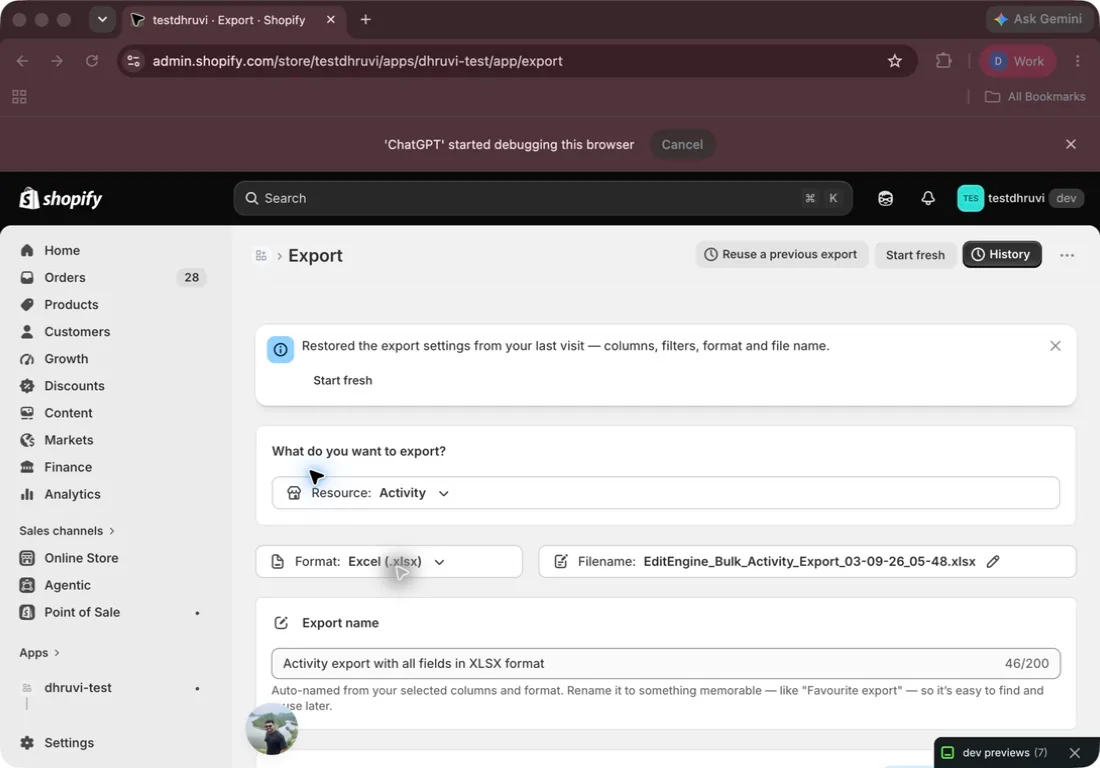
EditEngine displays the unfiltered event count returned by Shopify. Shopify limits this count to 10,000, so a busy store can show ≥ 10,000 total Activity events instead of an exact larger number. Adding filters does not reduce the displayed count.
An empty store or a filter with no matches can produce a valid header-only file rather than an error.
Step 2 — Choose the ten columns
All ten Activity columns are selected by default: seven under Base and three under Other Details.
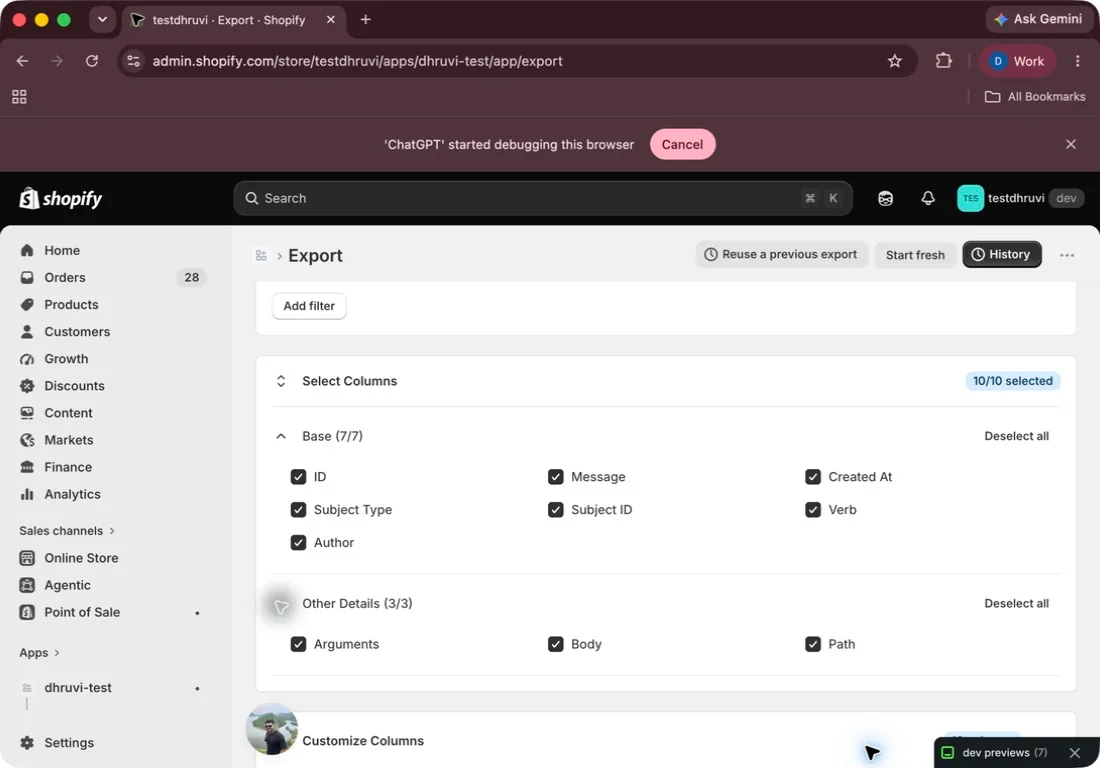
| Column | Meaning |
|---|---|
ID | Numeric Shopify event ID. EditEngine always emits it, even if deselected. |
Message | Shopify's event description. It can contain HTML. |
Created At | Event timestamp rendered in the store's time zone. |
Subject Type | A readable type such as Product, Order, or Comment. |
Subject ID | Numeric ID of the affected resource when Shopify supplies one. For comment events, this identifies the commented resource. |
Verb | Action recorded by Shopify, such as create, update, or destroy. |
Author | Shopify's event author text, or the staff member's name for a comment when that optional data is available. |
Arguments | Shopify event arguments joined with a pipe character; nested values are represented as JSON. |
Body | Comment text for comment events; blank for basic events. |
Path | Full Shopify Admin URL for supported subject types when the store domain and subject ID are available. |
EditEngine emits one row for each Shopify basic or comment event. Non-event records and records without an event ID are skipped.
Step 3 — Filter the activity log
Select Add filter to narrow the exported rows.
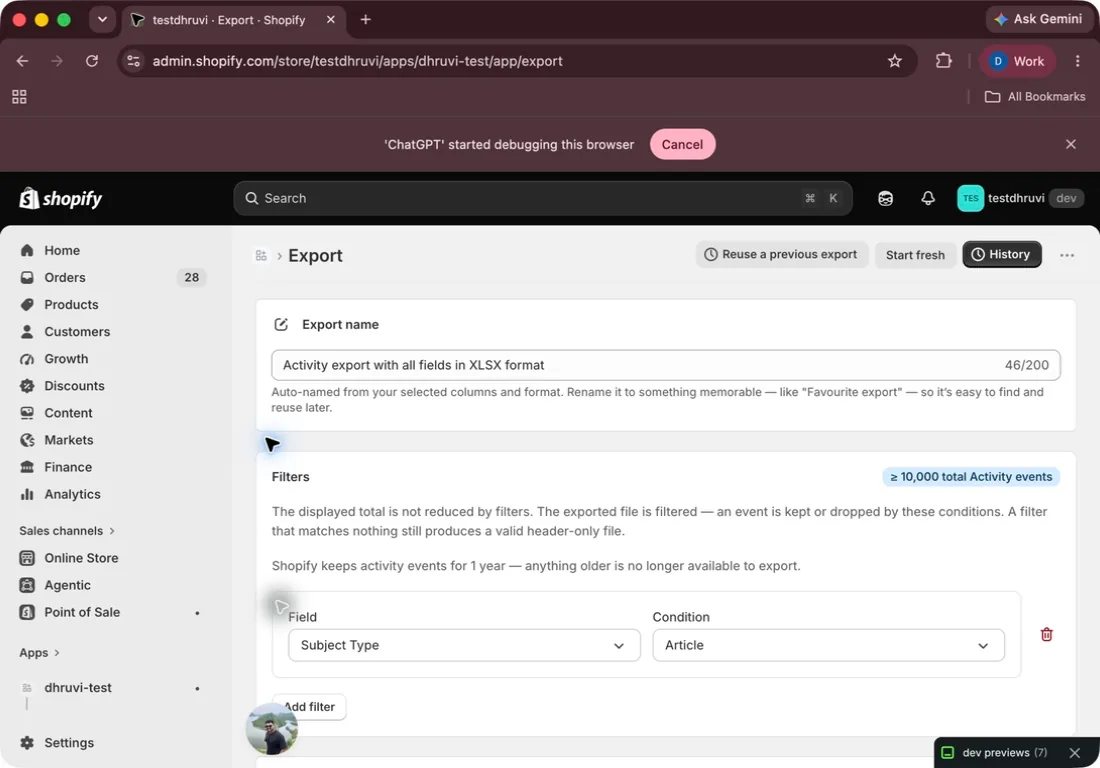
EditEngine exposes five filter fields:
| Field | Conditions |
|---|---|
| Subject Type | is any of 19 current Shopify subject types |
| Verb | equals any of, does not equal any of, contains none of, contains any of |
| Created At | on or after, on or before, date range, relative date |
| ID | equals any of, does not equal any of, greater than or equal to, less than or equal to, between |
| Comment Events | include, exclude, only |
Verb values are comma-separated. Common values include create, update, destroy, published, and unpublished, but the actual verb comes from Shopify.
Created At conditions use the store's time zone. Relative Date means the last full number of days, weeks, or months, excluding the current incomplete period. For example, last full 1 day means yesterday in the store's time zone.
ID comparisons support Shopify's large numeric IDs without losing precision. An incomplete range or unusable numeric value is ignored instead of accidentally excluding rows.
You can combine multiple conditions with all or any. A blank condition matches everything and shows a warning. EditEngine may push safe all conditions into the Shopify query, but it still evaluates filters while building the file so the final rows follow the selected logic. A zero-match filter produces a valid header-only sheet.
Matrixify documents Subject Type, Verb, and Created At filters. EditEngine intentionally adds ID and Comment Events. EditEngine also includes Shopify's current DiscountCodeNode subject type; Matrixify's current filter list omits it.
Step 4 — Understand Subject Type and Path
The current EditEngine Subject Type choices are:
Article, Blog, Collection, Comment, Company, CompanyLocation, Customer, DiscountAutomaticBxgy, DiscountAutomaticNode, DiscountCodeNode, DiscountNode, DraftOrder, InventoryTransfer, Order, Page, PriceRule, Product, ProductVariant, and Unknown.
This list follows Shopify's current Event subject enum. Matrixify's column reference shows a shorter historical subset and includes ApiPermission, which is not in Shopify's current enum.
EditEngine only constructs Path for these verified Shopify Admin routes:
- Article
- Blog
- Collection
- Customer
- DraftOrder
- Page
- PriceRule
- Product
For other subject types, or when Shopify does not provide enough identity information, Path is blank. Do not invent a URL from Subject Type and Subject ID: Shopify Admin route shapes are not uniform.
Step 5 — Read authors and comments carefully
For a basic event, Author is the author string returned by Shopify. For a comment event, EditEngine uses the staff member's display name when Shopify permits access to it and writes the raw comment text to Body.
Comment-author details require Shopify's optional read_users access. Availability depends on Shopify's staff-data eligibility requirements and the scope actually granted to the app; it is not simply a Plus-only feature. If that access is unavailable—or if the scope check itself fails—EditEngine keeps the export running and leaves the comment Author blank. The event, comment Body, and other available fields are still exported.
Use Comment Events → only to build a comments-only report, or exclude to omit comments from a broader activity audit.
Step 6 — Run a focused audit
For a practical change investigation:
- Filter Created At to the incident window.
- Choose the affected Subject Type.
- Add Verb when you know the action, such as
destroyorupdate. - Export all ten columns so the report keeps message, actor, arguments, comment text, and available paths together.
- Sort by Created At, then group related rows by Subject Type and Subject ID.
- Open only the populated Path links and confirm the current resource state in Shopify Admin.
The Activity sheet tells you what Shopify recorded. It does not reconstruct deleted resources or guarantee that every app action has a human Author value.
Step 7 — Understand why there is no import step
Advanced Import recognizes the Activity sheet name for compatibility checks, but the resource has no live import adapter and no executable commands. Activity events are Shopify audit records, not merchant-editable content.
Do not add Command, edit event values, or upload the exported file expecting changes. EditEngine cannot use it to:
- create a historical event;
- change its timestamp, author, subject, message, or verb;
- attach a comment to another resource;
- replace or delete an audit event; or
- restore an affected resource in another store.
Use the spreadsheet as evidence for review. Make any permitted resource change through Shopify Admin or the appropriate EditEngine resource workflow.
Step 8 — Verify the report
After the export completes:
- Confirm the worksheet is named Activity.
- Check that every populated ID is numeric and unique to its event row.
- Confirm the earliest and latest Created At values match the intended period.
- Compare a sample of Message, Verb, Subject Type, and actor values with the Shopify Admin activity log at
/admin/activity. - Treat blank Author or Path cells as unavailable data, not automatically as an export failure.
- Store or share the final file according to your audit-data policy.
Common mistakes
Trying to import the sheet. Activity is export-only in both EditEngine and Matrixify.
Assuming ≥ 10,000 is an exact total. Shopify caps the count response at 10,000; the symbol means more events may be available.
Expecting filters to update the count badge. The displayed count is intentionally unfiltered.
Looking for events older than one year. Shopify no longer makes them available through this export source.
Assuming every row has an Author. Comment authors depend on optional, Shopify-restricted staff access.
Assuming every Subject Type has a Path. EditEngine only creates URLs for verified admin routes.
Treating Message as plain text. Shopify can return HTML in the event message; sanitize it before rendering it in another system.
Using a partial numeric range. Supply both bounds for Between; incomplete numeric conditions are ignored.
Treating the file as a state backup. Activity events describe changes but cannot restore the underlying resource.
Related tutorials
- Export and reconcile Shopify Payouts — compare financial events with Shopify Payments records.
- Export and import Shopify customers — inspect or repair the current customer data referenced by an activity event.
- Export and import Shopify companies — work with the current B2B records behind company events.
- Export Shop details and import metafields — preserve store time-zone context when reviewing event timestamps.
About EditEngine: EditEngine Bulk Product Editor helps Shopify merchants bulk edit, import, and export store data from spreadsheets. Install on Shopify →