
Collections
Shopify Smart Collections: Export and Import
Published by Profitonium Apps · Last updated
Current Matrixify compatibility: Matrixify now documents a unified Collections sheet and deprecates its separate Custom/Smart sheets. EditEngine still uses the separate Smart Collections resource and its legacy
Rule:columns. The newSource:,Inclusion:, andCondition:schema is not an EditEngine import format; changing the worksheet name does not convert it.
Use the Smart Collections resource when you need to export or edit Shopify automated collections: their titles, descriptions, images, publication state, metafields, SEO, sort order, or rules. Shopify automatically adds and removes products as their data starts or stops matching those rules.
This is different from exporting Products with the Smart Collections column. That product column reports automatic memberships, but it is read-only. It does not let you assign a product directly to an automated collection.
Before you start
- Install EditEngine Bulk Product Editor in your Shopify store.
- Use Advanced import for the edited file.
- Keep one untouched copy of the export. Advanced imports do not have one-click undo.
- Test rule changes,
DELETE, and collection-levelREPLACEon one or two collections before importing the complete file.
EditEngine follows the Matrixify Smart Collections spreadsheet format for the collection and rule columns. The differences that matter in EditEngine—especially linked-product imports, category conditions, commands, and Shopify's newer flexible collection model—are called out below.
Step 1 — Export Smart Collections
Open EditEngine → Export, choose Smart Collections as the resource, and select the fields you need.
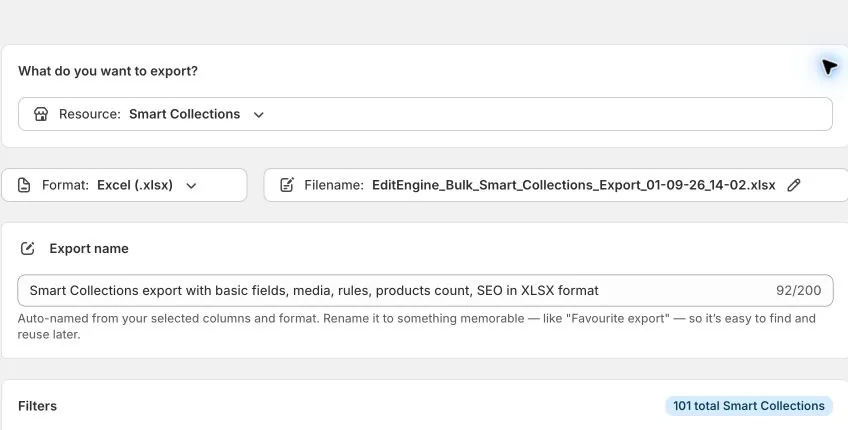
Always keep these columns in a round-trip file:
- ID — the safest identifier for an existing collection.
- Handle — the collection's URL handle and the next matching key if ID is unavailable.
- Command — controls how the collection is processed. EditEngine exports
MERGE. - Title — required when creating a collection and when using collection-level
REPLACE. - Must Match — whether Shopify should apply all rules or any rule.
- Rule: Product Column, Rule: Relation, and Rule: Condition — the three parts of each automated rule.
Add collection fields only when you need them:
- Body HTML, Sort Order, Template Suffix
- Published, Published Scope
- Image Src, Image Alt Text
- SEO — exports Metafield: title_tag [string] and Metafield: description_tag [string]
- Any collection metafields you need
The optional Linked Products fields—Product: ID, Product: Handle, and Product: Position—are useful for auditing which products currently match the collection. They are export context only; EditEngine does not import Smart Collection membership or product positions.
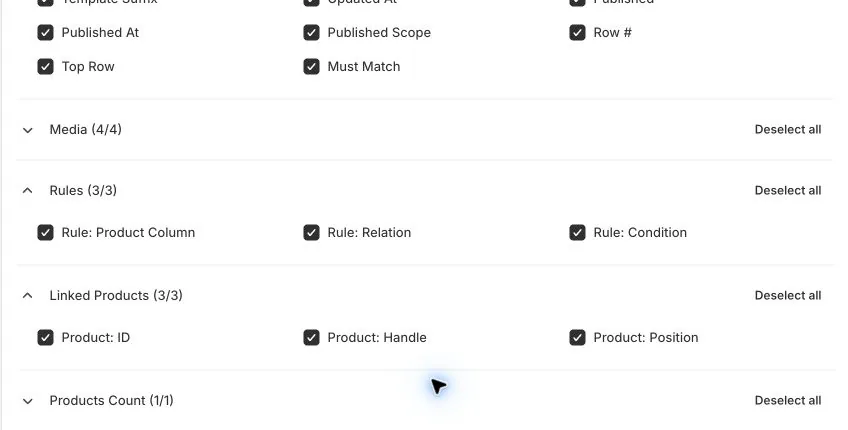
Columns such as Updated At, Published At, Image Width, Image Height, Row #, Top Row, and Products Count are also export context. Do not rely on them to change Shopify data.
Download the CSV or XLSX, then duplicate it before editing. That untouched export is your recovery reference if you need to reconstruct a collection manually.
Step 2 — Understand the rule rows
An automated collection normally occupies one row per rule. EditEngine groups rows by ID, then Handle, then Title. Keep the same identifier on every row belonging to one collection.
For example, this collection includes products tagged either On-sale or Large:
ID,Handle,Command,Title,Must Match,Rule: Product Column,Rule: Relation,Rule: Condition
,sale-or-large,NEW,Sale or Large,any condition,Tag,Equals,On-sale
,sale-or-large,NEW,Sale or Large,any condition,Tag,Equals,Large
any conditionmeans a product needs to match at least one rule.all conditionsmeans a product must match every rule.
This is the same row pattern Matrixify uses in its bulk-create Smart Collections by tags tutorial.
Keep collection-level values such as Title, Body HTML, Sort Order, and Published consistent across repeated rule rows, or fill them only on one row. If two rows for the same collection contain conflicting non-blank values, EditEngine fails that collection instead of choosing one value arbitrarily.
Step 3 — Edit collection details and rules
Choose the collection command
| Command | What EditEngine does |
|---|---|
MERGE | Updates the existing collection, or creates it if no match is found. This is the normal round-trip command. |
NEW | Creates a collection and fails if the identified collection already exists. A Title and at least one valid rule are needed for a useful automated collection. |
UPDATE | Updates an existing collection and fails if it cannot find one. |
REPLACE | Deletes the existing collection and recreates it from the file. A Title and at least one rule are required, and the Shopify collection ID changes. |
DELETE | Deletes the identified collection. Products are not deleted. |
IGNORE | Skips the collection group without changing Shopify. |
If the Command cell is blank, EditEngine uses the Default Command selected on the import screen; that screen defaults to Merge. Keep the exported MERGE values unless you intentionally need another command.
Use IGNORE to retain a collection group in your working file without applying it. Keep the remaining command values explicit.
Update collection metadata without changing rules
Keep the exported ID and MERGE or UPDATE, remove the three Rule: columns if you do not intend to change the rule set, and edit only the required metadata:
ID,Handle,Command,Title,Body HTML
1234567890,summer-sale,UPDATE,Summer Sale 2026,"<p>Seasonal offers.</p>"
EditEngine matches an existing collection by ID, then Handle, then Title. Use ID whenever possible; Title is a fallback and is unsafe when collection titles are duplicated.
Replace the complete rule set
When the file contains valid Rule: rows, EditEngine sends that grouped rule set to Shopify. Include every rule you want the collection to keep—the supplied rule set replaces the existing rules rather than appending one rule at a time.
ID,Handle,Command,Title,Must Match,Rule: Product Column,Rule: Relation,Rule: Condition
1234567890,summer-sale,UPDATE,Summer Sale 2026,all conditions,Tag,Equals,Sale
1234567890,summer-sale,UPDATE,Summer Sale 2026,all conditions,Variant Price,Less Than,100
If you include rule rows but leave Must Match blank, EditEngine uses all conditions. If you want to leave all existing rules untouched, omit the three Rule: columns from the import instead of submitting a partial rule set.
Use supported rule columns and relations
EditEngine accepts these Rule: Product Column values:
Title,Type(orProduct Type),Vendor, andTagCategoryandCategory with SubcategoriesVariant Title,Variant Compare At Price,Variant Weight,Variant Inventory, andVariant PriceMetafield: namespace.keyandVariant Metafield: namespace.key
Accepted Rule: Relation values are Equals, Not Equals, Greater Than, Less Than, Starts With, Ends With, Contains, Not Contains, Is Empty, and Is Not Empty. Shopify allows only certain relations for each rule column; an invalid pairing is returned as a row error in the results file.
Two rule types need extra preparation:
- For Category rules, EditEngine currently requires the full Shopify taxonomy category GID in Rule: Condition, such as
gid://shopify/TaxonomyCategory/aa-1-10. Matrixify also documents name and breadcrumb inputs, but those are not resolved by EditEngine's Smart Collections importer. - For product or variant metafield rules, create the matching metafield definition in Shopify Admin → Settings → Custom data and enable it for automated collections before importing.
Know what linked-product columns do
Smart Collection membership is rule-defined. If an import row contains a value in any Product: column, EditEngine records a warning and ignores that membership data.
That means EditEngine does not currently implement Matrixify's Smart Collection product-position import workflow. Product: Position is populated on export only when Sort Order is Manual; changing that value in the spreadsheet will not reorder the collection on import. Change existing Smart Collection product order in Shopify Admin.
For an automatically sorted collection—such as Best Selling, Alphabet, Created, or Price—Shopify controls the order.
Use supported Sort Order values
The importer accepts Manual, Best Selling, Alphabet, Alphabet Descending, Created, Created Descending, Price, and Price Descending.
Most Relevant can appear in an export for Shopify collections using the RELEVANCE sort order, but EditEngine does not currently accept that value on import. For a metadata-only round trip, omit Sort Order; otherwise change it to one of the supported values before importing.
Be careful with blank cells
Blank cells do not all mean “leave unchanged”:
- A blank Template Suffix cell clears the template suffix when that column is present.
- A blank Published cell is treated as false and unpublishes the collection from Online Store.
- A blank dynamic Metafield: namespace.key [type] cell deletes that metafield.
- Blank Metafield: title_tag [string] and Metafield: description_tag [string] cells clear the collection SEO fields.
- A blank Body HTML cell does not clear the description during an in-place update; omit it or keep it blank only when you intend no description change.
- Blank image cells do not remove the existing collection image.
Omitting a column is the safest way to leave that field unchanged. Keep Published and Published Scope together when changing publication: web means Online Store only, while global also publishes to Point of Sale when that publication is available to the app.
Step 4 — Import through Advanced import
Open EditEngine → Import, choose Advanced import, and upload the edited CSV or XLSX.
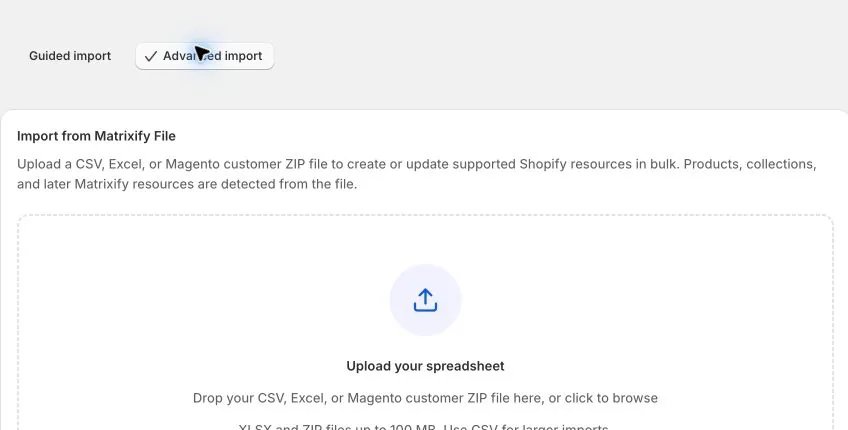
Before starting the job, verify:
- The detected resource says Smart Collections.
- Default Command is Merge, unless you deliberately prepared the entire file for another command.
- Every collection's repeated rows use one consistent ID or Handle.
- Every rule group contains the complete intended rule set.
- Any
DELETEor collection-levelREPLACErows are intentional.
Start the import, then download the results file when it finishes. Review failed rows and warnings even when the overall job says it completed.
Step 5 — Verify the round trip
Verify the result in two places:
- Open the affected automated collections in Shopify Admin and inspect their details, all/any setting, and rule list.
- Run a fresh Smart Collections export with the same columns and compare it with your intended spreadsheet.
Allow Shopify time to recalculate which products match after a rule change. Product membership can continue changing later whenever a product's tags, vendor, type, category, price, inventory, or referenced metafield changes.
For DELETE or collection-level REPLACE, test a small batch first. Re-importing the untouched export is not a guaranteed automatic rollback because REPLACE recreates the collection with a new Shopify ID.
Shopify flexible collection limitation
Some shops use Shopify's newer flexible or composable collection model instead of the legacy automated rule set.
EditEngine can update metadata such as Title, Handle, Body HTML, Image, and Sort Order on those collections. It can also delete them, and collection-level REPLACE can recreate them. However, an in-place import that changes Rule: fields is rejected because Shopify does not expose that flexible rule model through the same legacy ruleSet input. Manage those rules in Shopify Admin.
REPLACE is not a migration of the original flexible sources: it deletes the collection and creates only the legacy-compatible structure supplied in the file. Multiple sources, exclusions, app-owned sources, and nested collections are not reconstructed. Keep such collections out of a delete-and-create round trip. The Products export's All Collections column can report membership without making this source structure writable.
Common mistakes
Using the Products resource by accident.
The Smart Collections column on a Products export reports current memberships. Choose the Smart Collections resource to edit the collection record and its rules.
Trying to add a product through Product: Handle.
Linked-product columns are export context for Smart Collections. Change the collection's rules or the product data used by those rules.
Importing one new rule and omitting the old rules.
A supplied rule set is complete, not additive. Export the current rules, keep every rule you still need, then add or edit rows.
Using a category name instead of a taxonomy GID.
EditEngine requires gid://shopify/TaxonomyCategory/... in Category rule conditions.
Expecting Product: Position to reorder products.
EditEngine exports manual Smart Collection positions for reference but does not import them.
Related tutorials
- Export and import Shopify Custom Collections — use this for manual collections and direct product membership.
- Edit Shopify product tags in bulk — change the product data commonly used by automated collection rules.
- Replace Shopify tags per product — rebuild complete tag sets from a spreadsheet.
About EditEngine: EditEngine Bulk Product Editor helps Shopify merchants bulk edit, import, and export store data from spreadsheets. Install on Shopify →