
Orders and fulfillment
Shopify Draft Orders: Export and Import
Published by Profitonium Apps · Last updated
Use the Draft Orders resource to export Shopify draft orders into a Matrixify-shaped CSV or XLSX file. You can then create drafts, update supported fields, manage lines and tags, send invoices, complete drafts into Orders, or delete and replace drafts through EditEngine's Advanced Import.
Draft Orders are multi-row records. One draft can contain product or custom line items, an order-level discount, and a shipping line. Keep every row for one draft together and make each command deliberate: sending an invoice contacts a customer, completing a draft creates a real Order, and DELETE or REPLACE removes the existing draft.
This guide follows the official Matrixify Draft Orders column reference, bulk-import tutorial, send-invoice tutorial, and complete-drafts tutorial. Where EditEngine differs, this guide states the EditEngine behavior explicitly.
Before you start
- Keep an untouched export as your audit reference. Advanced Import does not provide the bulk editor's one-click undo.
- Test the file on one non-critical, open draft before scaling up.
- Use Advanced Import only. The worksheet may be named Draft Orders or Draft Order.
- Repeat the same identity on every row that belongs to one draft. Do not rely on blank continuation rows.
- For same-store updates, keep the Draft Order
ID. For a cross-store import, remove source-store IDs and resolve customer, company, location, product, variant, line, and metafield references in the destination store. - Do not include
Send Invoice = TRUE,Complete = TRUE,DELETE, orREPLACEuntil you have reviewed exactly which drafts those actions target.
Step 1 — Select Draft Orders
Open EditEngine → Export, choose Draft Orders, and select CSV or Excel format.
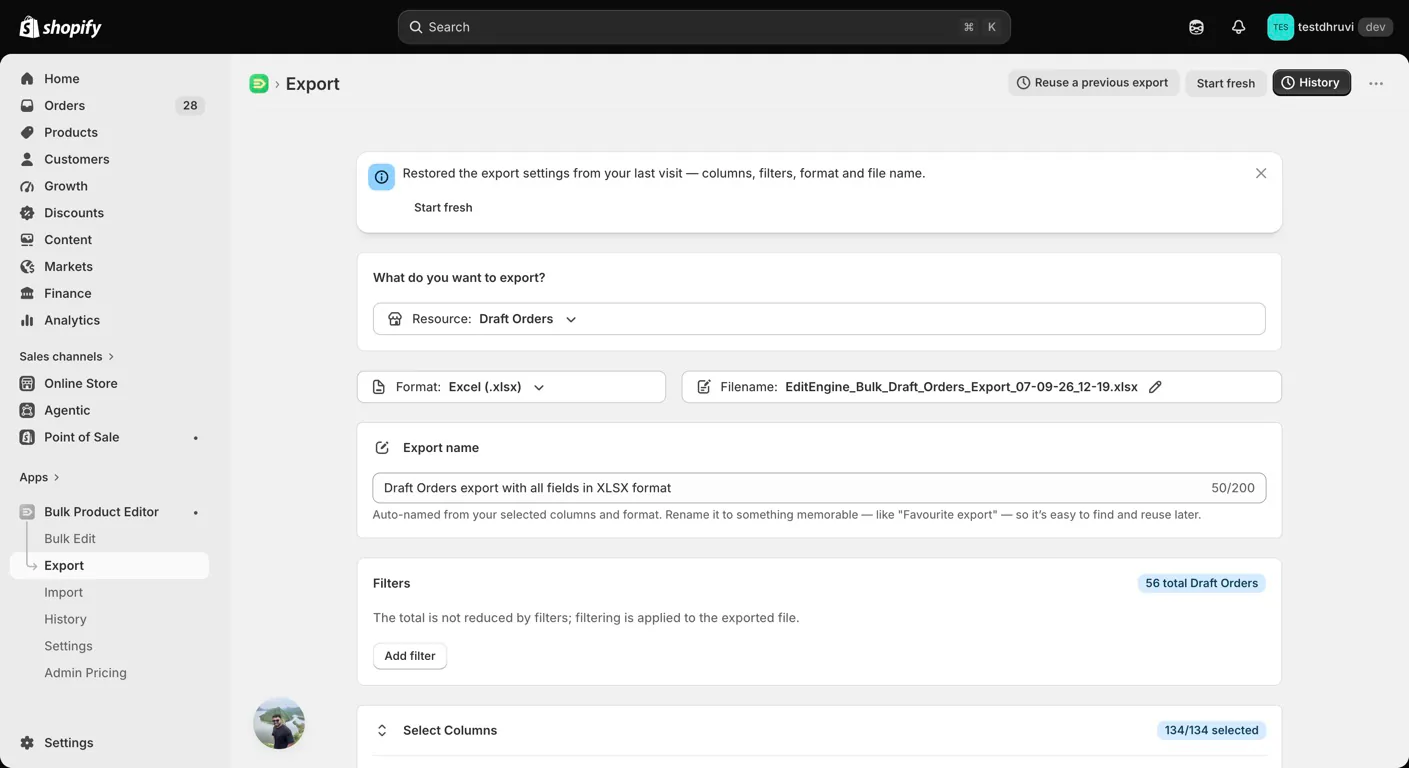
The production panel shows the exact unfiltered count returned by Shopify. In the signed-in test store used for this guide, it displayed 56 total Draft Orders. Adding filters does not change that count badge; filters are applied while the file is built.
A filter with no matches still produces a valid header-only file. Excel exports use the Draft Orders worksheet name.
Step 2 — Choose the 134 column controls
Draft Orders exposes 134 production column controls, and all 134 are selected by default.
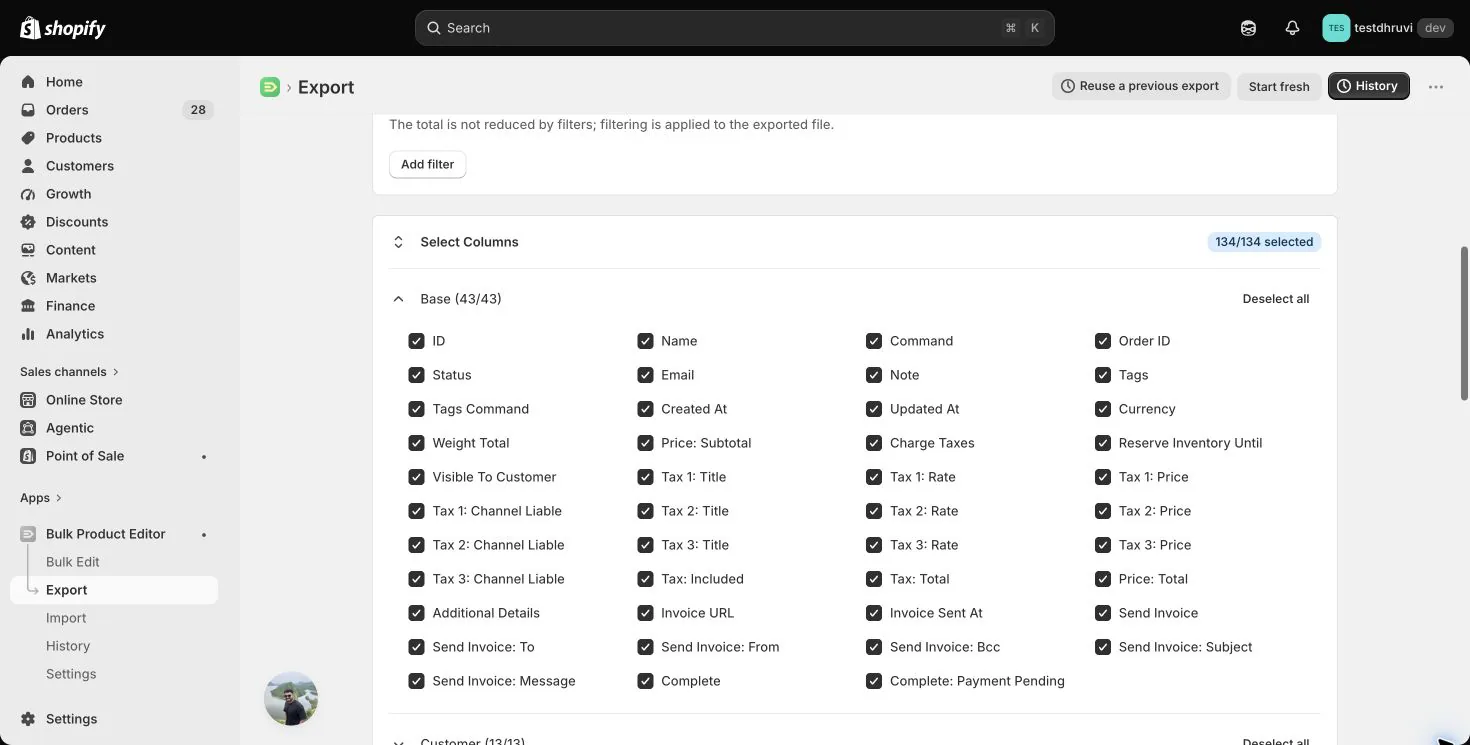
| Group | Controls | What it contains |
|---|---|---|
| Base | 43 | Identity, commands, status, contact, tags, totals, taxes, invoice controls, and completion controls |
| Customer | 13 | Linked customer identity, profile snapshot, marketing states, and tax exemption |
| Billing and Shipping Addresses | 26 | Thirteen billing and thirteen shipping address fields |
| Company | 6 | B2B company and company-location identity |
| Line Items | 38 | Row markers, line identity and command, product links, quantity, price, discounts, taxes, properties, and fulfillment values |
| Line Items Product Data | 7 | Current linked product and variant values |
| Metafields | 1 | Dynamic Draft Order metafield columns selected by namespace and key |
The three order-level and three line-level tax blocks are fixed export fields. They report Shopify's calculated taxes and cannot be imported. Tax: Included is also export-only; if you populate it during import, EditEngine records a non-blocking warning and ignores that value.
The Line Items Product Data group reads the linked product or variant as it exists now. Those values are export-only and can differ from the historical line snapshot on the draft.
The Draft Orders column reference covers every control, accepted values, blank-cell behavior, and fields that are export-only in EditEngine. The 134 controls represent 133 fixed headers and one Metafields selector, which can expand into several columns.
For a round trip, keep only the columns required for the intended change. An export with all controls selected is useful for backup and analysis, but its many action and child-row fields deserve extra review before import.
Step 3 — Filter the export
Select Add filter to narrow the Draft Orders written to the file.
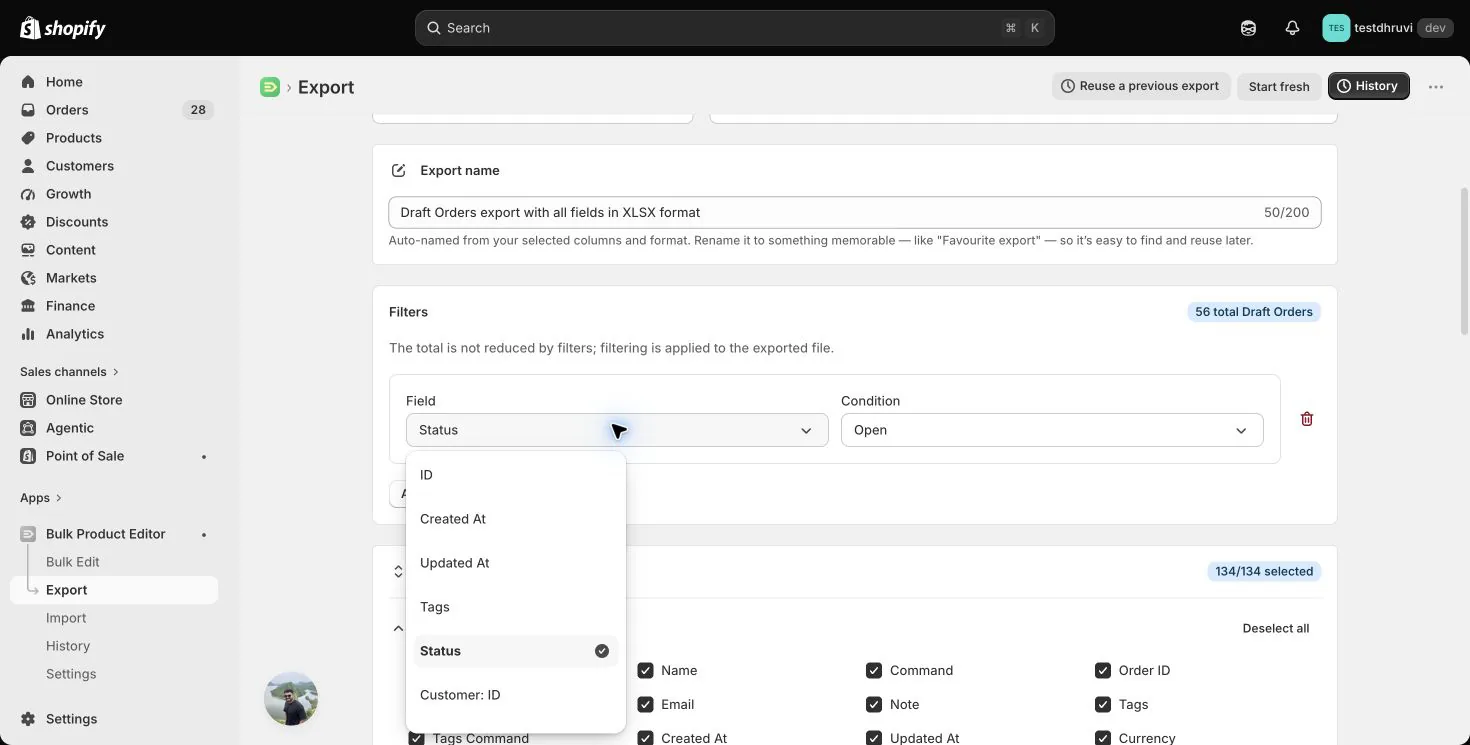
EditEngine exposes 15 production filter fields:
- ID, Created At, Updated At, Tags, and Status;
- Customer: ID and Customer: Tax Exempt;
- Line: Type, Line: Title, Line: Name, Line: Variant ID, Line: Variant Title, Line: SKU, and Line: Vendor; and
- Metafield.
Status choices are Open, Invoice Sent, and Completed. Line Type choices are Line Item, Discount, and Shipping Line. Date conditions use the store's time zone. Text filters support the conditions shown for that field, including comma-separated matching and pattern matching where offered; metafields support text or numeric conditions.
Multiple filters can match all or any. A blank condition matches everything and shows a warning. Line filters select the whole matching Draft Order, so its other exported child rows remain in the file.
Matrixify documents the same core filters. EditEngine adds Customer: ID as a separate production filter.
Step 4 — Understand the multi-row export
One Draft Order can expand into these Line: Type rows:
Line Itemfor a product-backed or custom line;Discountfor the one order-level discount; andShipping Linefor the one shipping charge.
The export writes line items first, then the discount row, then the shipping row. Row # preserves spreadsheet order and Top Row = TRUE marks the first row. The top row carries the full draft-order data; later rows repeat ID and Name so the group stays identifiable.
Exports set Command = MERGE and Tags Command = REPLACE. Those values describe the normal round-trip shape, but they still execute when imported. Remove child rows and action columns that are unrelated to your intended change.
Step 5 — Choose identity and Command explicitly
For an existing Draft Order, EditEngine resolves:
ID, when present; then- exact
Name, when ID is absent.
Number groups rows inside the spreadsheet but is not used to find a Shopify Draft Order. For a new multi-row draft, repeat the same Number or placeholder Name on every row. A content row with no ID, Number, or Name becomes its own new group instead of joining the previous draft.
| Command | EditEngine Advanced Import behavior |
|---|---|
NEW | Creates a draft only when the supplied identity does not already match |
MERGE | Updates a match, or creates when there is no match and no unresolved ID |
UPDATE | Updates an existing match and fails on a miss |
REPLACE | Deletes a matching open or invoice-sent draft, then creates a new one; creates on a miss |
DELETE | Deletes a matching open or invoice-sent draft |
IGNORE | Skips the row; set it on every row when skipping a whole draft |
A blank Draft Orders command defaults to MERGE. Populate it anyway so the file states its intent.
If an ID is present but Shopify cannot resolve it, UPDATE and MERGE fail instead of falling back to Name. This protects same-store updates from silently targeting a different draft.
Matrixify says Name cannot identify an update and recommends ID. EditEngine additionally supports an exact Name lookup when ID is absent. ID remains safer because a generated Name is not a cross-store identity.
Step 6 — Create a new Draft Order
A new draft needs at least one valid Line Item row. You can link a store variant or create a custom line:
| Line kind | Minimum practical values |
|---|---|
| Product-backed | Variant ID, or an exact SKU, or Product ID/Handle plus enough variant identity; and Quantity |
| Custom line | Line: Title, Line: Price, Currency, and Quantity |
| Shipping Line | Line: Type = Shipping Line, Line: Title, Line: Price, and Currency |
| Order discount | Line: Type = Discount, Line: Title = percentage or fixed_amount, and the discount value |
Product resolution starts with Line: Variant ID, then uses supplied Product ID, Product Handle, and exact SKU fallbacks. If a product has multiple variants, include an exact Variant Title or SKU. Every referenced ID must belong to the destination store.
For SKU-only product linking, omit Line: Price. A populated price without Variant ID, Product ID, or Product Handle selects a custom line, even when a SKU is supplied. Product-backed line prices come from the linked variant; Line: Price does not override them.
Always supply the intended price for a custom line or Shipping Line. A blank price can become 0.00 when creating or replacing that line. Currency is required for a Shipping Line; include it with custom prices to state the currency explicitly.
Only one order-level Discount row and one Shipping Line row are supported per draft. On a Line Item row, Line: Discount is the total fixed discount for that whole line; either sign is accepted. EditEngine converts it to a per-item amount and rejects custom-line discounts above price multiplied by quantity. A populated 0 is rejected, so omit unused zero-discount cells from an export before import. Line: Discount per Item is export-only. Line: Properties and Additional Details use name: value lines.
Billing or shipping addresses are created only when their Country or Country Code is present. Country Code takes priority over Country, and Province Code takes priority over Province.
Step 7 — Update or replace lines deliberately
Line: Command defaults to REPLACE.
When every line row uses REPLACE, the provided line rows become the draft's complete line-item input. Resolve a product variant or supply a custom Title and the intended Price for each replacement line. Blank replacement quantity defaults to 1, and blank custom price can become 0.00. Repeated rows with the same Line: ID are combined and their quantities are summed only when their other values agree.
For an existing draft, Line: Command = MERGE or DELETE switches to line-aware editing:
- EditEngine loads the draft's current lines.
- A line can match by Line ID, Variant ID, Product ID, normalized SKU, or normalized Title.
Line: Nameis the title alias only when theLine: Titleheader is absent. MERGEpreserves omitted values on a matched line and appends a new line when no existing line matches.DELETEremoves the matched line.- The resulting draft must retain at least one line.
On a matched MERGE line, an omitted quantity or custom price preserves the existing value. Once any line uses MERGE or DELETE, REPLACE rows in that same group append replacement input rather than clearing the entire current list. Keep the line command consistent with the operation you intend.
An existing metadata-only update does not need line rows. Delete all unrelated line rows from a focused Note, Tags, customer, address, invoice, or metafield update.
Step 8 — Update fields, tags, and metafields
Open and invoice-sent drafts can update only the supported nonblank values supplied in the sheet, including Email, Phone, Note, Additional Details, Currency, Charge Taxes, Reserve Inventory Until, Visible To Customer, customer/company links, addresses, lines, tags, and metafields.
Ordinary blank fields generally mean no change. Two important command-driven areas behave differently:
Tags
Tags Command defaults to REPLACE and tag operations run in spreadsheet row order:
MERGEadds the listed tags;DELETEremoves the listed tags; andREPLACEsets the complete listed tag set.
A blank Tags cell creates no tag operation, even when Tags Command is REPLACE.
Metafields
A nonblank Metafield: namespace.key [type] cell sets that Draft Order metafield. A blank selected metafield cell deletes it. Remove metafield columns that you do not intend to change.
For the same namespace/key in a multi-row draft, the last cell wins, including a blank on a later row. The export puts metafields on the top row, so its blank continuation cells can delete a value if reimported unchanged. For a metafield-only update, prepare one row per Draft Order ID with only the metafield columns you intend to change. If you must combine line and metafield edits, repeat the intended metafield value on every row in that draft group.
Step 9 — Respect completed Draft Orders
A completed draft already produced a real Shopify Order. EditEngine permits only tag changes on it, using UPDATE or MERGE with a tags-only row group.
Any other populated operation on a completed draft fails. Completed drafts cannot be replaced or deleted. To change the resulting Order, use the separate Orders workflow and its own safety rules.
Step 10 — Link customers and B2B companies
EditEngine resolves a customer by Customer ID, then exact Email, then exact Phone. If no customer matches and the sheet provides an email or phone, it creates a customer before linking the draft.
Customer profile columns do not bulk-edit an existing customer's record through the Draft Orders sheet. Use the Customers resource for customer changes.
For a B2B company link, the company and location must resolve, and the linked customer must have a contact role at that Company Location. Company and location IDs are store-scoped; replace source-store IDs during migration.
Step 11 — Send an invoice or complete the draft
Set Send Invoice = TRUE only when Shopify should email the draft invoice. You can optionally supply To, From, Bcc, Subject, and Message; Shopify defaults apply when optional values are blank.
Set Complete = TRUE only when Shopify should convert the draft into a real Order. Complete: Payment Pending = TRUE creates that Order with payment pending; FALSE requests completion without payment pending, while blank leaves Shopify's default in place.
When both actions are present, EditEngine creates or updates the draft, sends the invoice, and then completes it. Completion changes the draft's state and creates another Shopify record, so test this workflow separately from ordinary field updates.
Step 12 — Import through Advanced Import
Open EditEngine → Import, choose Advanced Import, and upload the edited CSV or XLSX file.
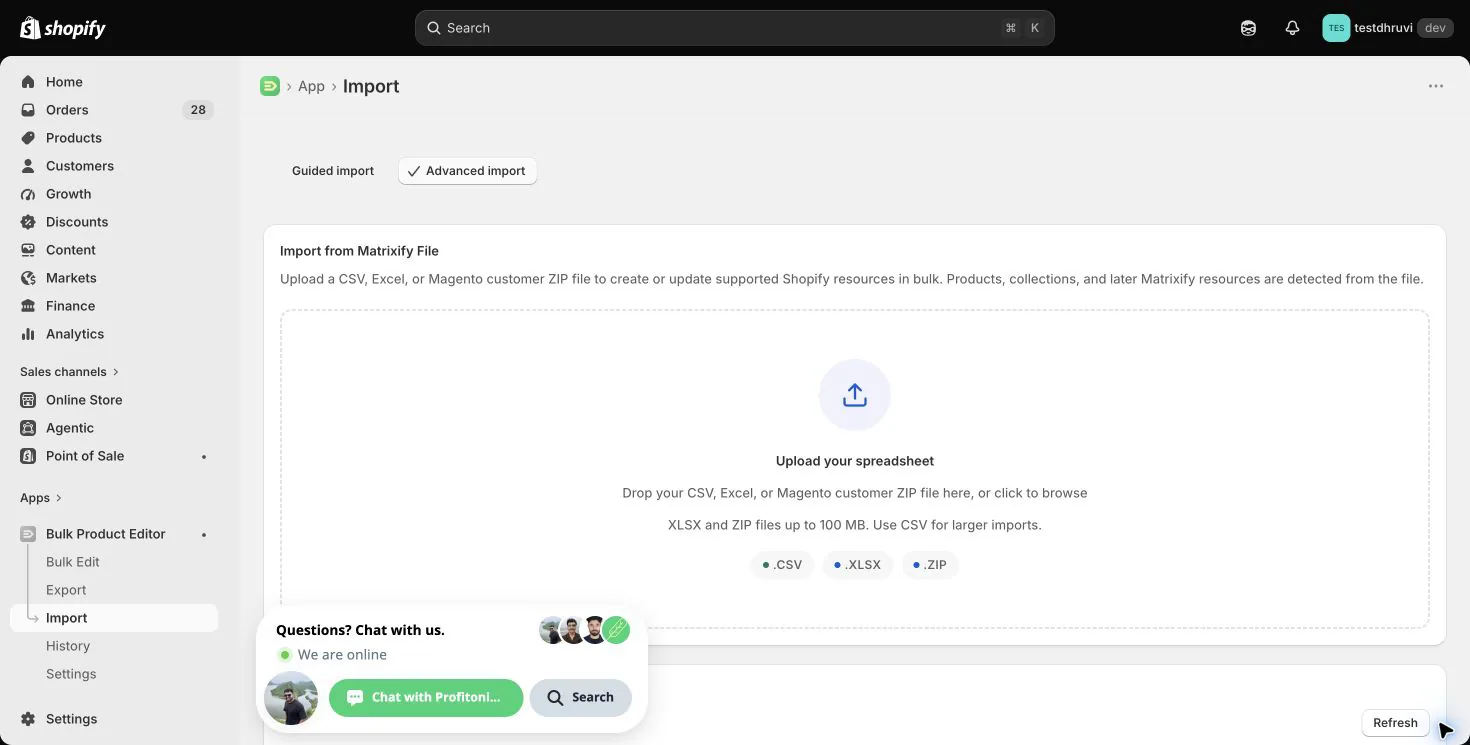
Before starting the import:
- Confirm that EditEngine detects Draft Orders and the intended worksheet.
- Review every detected header and the spreadsheet row count.
- Confirm that all rows for each multi-row draft repeat the same ID, Number, or placeholder Name.
- Confirm every Draft Order Command, Tags Command, and Line Command.
- Remove action columns and child rows unrelated to this run.
- Review blank metafield cells, because a selected blank metafield deletes that value.
- Review every
Send Invoice = TRUE,Complete = TRUE,DELETE, andREPLACErow separately. - Start with one safe, open draft and inspect its result before scaling up.
Advanced Import requires draft-order read/write access plus the customer, company, and product access needed to resolve referenced records.
Step 13 — Verify the result
After the import completes:
- Download the result file and investigate every failed or warning row.
- Open each sample Draft Order in Shopify Admin and verify status, customer/company link, addresses, lines, discounts, shipping, tags, and metafields.
- If an invoice was sent, verify its recipient and the draft timeline.
- If a draft was completed, open the resulting Order and verify payment state, totals, customer, and lines.
- Re-export the same Draft Order IDs with the smallest relevant column set and compare the new state with your intended values.
- Keep the untouched source export and result file with your operational audit trail.
Two focused CSV recipes
These examples use placeholder IDs and SKU values. Replace them with values from your own export. Keep an untouched copy, upload through Import → Advanced Import, confirm Draft Orders detection, and test one draft before expanding the file.
Add a tag to a completed draft
Keep only ID, Command, Tags, and Tags Command. Remove customer, line, metafield, invoice, and completion columns entirely. This example adds Reviewed while preserving existing tags:
ID,Command,Tags,Tags Command
1234567890,UPDATE,Reviewed,MERGE
Use one row per Draft Order ID. UPDATE prevents creation if the ID is wrong, and Tags Command = MERGE adds the tag without replacing the tag set. After import, check the result file and confirm that the completed draft still has its original status and tags plus Reviewed. This changes the draft's tags, not the resulting Order's tags.
Change one existing line's quantity
For an open or invoice-sent draft, first confirm that the exported SKU identifies exactly one of its existing lines. This example changes that line to a quantity of 3:
ID,Command,Line: Type,Line: Command,Line: SKU,Line: Quantity
1234567890,UPDATE,Line Item,MERGE,SHIRT-BLUE-M,3
Use the exact exported SKU and omit price, discount, properties, and unrelated rows. On the matched line, MERGE preserves omitted values and retains the draft's other lines. If the SKU does not match an existing line, MERGE may append a new line, so verify the match before import; use a fresh Line: ID instead of SKU when SKU is not unique. After import, compare line count, quantity, unit price, properties, and totals with the untouched export. Recalculate expected totals for the changed quantity.
Common mistakes
Leaving Command blank. Draft Orders defaults to MERGE. Use an explicit command so creation and updates are intentional.
Using Name like a portable ID. EditEngine can match an exact Name without ID, but the name is Shopify-generated and store-specific. Prefer ID for same-store updates.
Expecting Number to find an existing draft. Number only groups spreadsheet rows; it is not a Shopify lookup key.
Leaving identity blank on continuation rows. Each content row without ID, Number, or Name becomes a separate new group. Repeat the identity on every row.
Re-importing every exported line. Line: Command defaults to REPLACE. Keep only the line rows needed for the intended workflow.
Removing all lines. Shopify Draft Orders must keep at least one line item.
Leaving a custom or shipping price blank. Creation/replacement can interpret it as 0.00. Supply the intended amount.
Reimporting Line: Discount = 0. A populated zero is rejected. Remove unused discount cells; blank does not clear an existing matched MERGE discount.
Combining SKU-only linking with Line: Price. Without a Variant ID, Product ID, or Product Handle, a populated price selects a custom line.
Leaving Tags Command blank. It defaults to REPLACE. Populate MERGE, DELETE, or REPLACE explicitly.
Blanking a metafield casually. A blank selected Draft Order metafield cell deletes that metafield. In a multi-row group, even a blank continuation cell can override the top-row value.
Editing a completed draft. Only tags-only UPDATE or MERGE operations are allowed after completion.
Importing Tax: Included. It is export-only; EditEngine warns and ignores the populated value.
Keeping source-store IDs. Draft Order, line, customer, company, location, product, variant, and metafield IDs do not transfer between stores.
Combining invoice and completion with an ordinary update. These actions contact the customer or create a real Order. Isolate and verify them in a small, dedicated file.
Related tutorials
- Bulk update Draft Order quantities — target one existing line by its exported ID with an explicit MERGE command.
- Draft Orders column reference — exact headers, accepted values, blank behavior, and import limits for all 134 export controls.
- Export and import Shopify Orders — manage the real Order created when a draft is completed.
- Export and import Shopify customers — prepare or update customer records before linking them to drafts.
- Export and import Shopify companies — prepare B2B company, location, and contact relationships.
- Export and import Shopify discounts — manage reusable Shopify discount definitions separately from a draft's order-level discount.
About EditEngine: EditEngine Bulk Product Editor helps Shopify merchants bulk edit, import, and export store data from spreadsheets. Install on Shopify →