
Store content
Shopify Translations: Export and Import
Published by Profitonium Apps · Last updated
Availability: Translations export is available to merchant stores with the required Shopify access. Translations Advanced Import is currently restricted to internal test shops; it is not enabled for ordinary merchant stores. The import steps below describe that restricted workflow, not a publicly available import feature.
Use the Translations resource to export and import localized Shopify content in a Matrixify-shaped CSV or XLSX sheet. Each row represents one translatable field for one Shopify resource and one market scope. Published non-primary languages appear as dynamic columns such as Translation Value: fr and Translation Value: de.
You can use the sheet to review multilingual coverage, update many translations together, remove selected translations, apply market-specific wording, or move translations between stores.
This guide follows the official Matrixify Translations sheet format. EditEngine accepts the same main entity and locale columns, but its identity rules and Market ID behavior differ in important ways described below.
Before you start
- Use Advanced import, not Guided import, for a Translations spreadsheet.
- Keep one untouched, access-controlled export. Advanced imports do not have one-click undo.
- Publish every language you want included in the export. EditEngine excludes the store's primary locale and unpublished locales.
- Test one locale, field, and market scope before importing a larger sheet.
- Treat a blank
Translation Value: <locale>cell as a deletion instruction for that exact locale, field, and market scope. - Create the destination products, collections, pages, blogs, blog posts, metaobjects, menus, and other translated resources before moving translations between stores.
Export needs Shopify's read_translations and read_locales scopes. Import also needs read access to the translated resource types and Shopify's write_translations scope.
Step 1 — Export Translations
Open EditEngine → Export, choose Translations, and select CSV or Excel format.
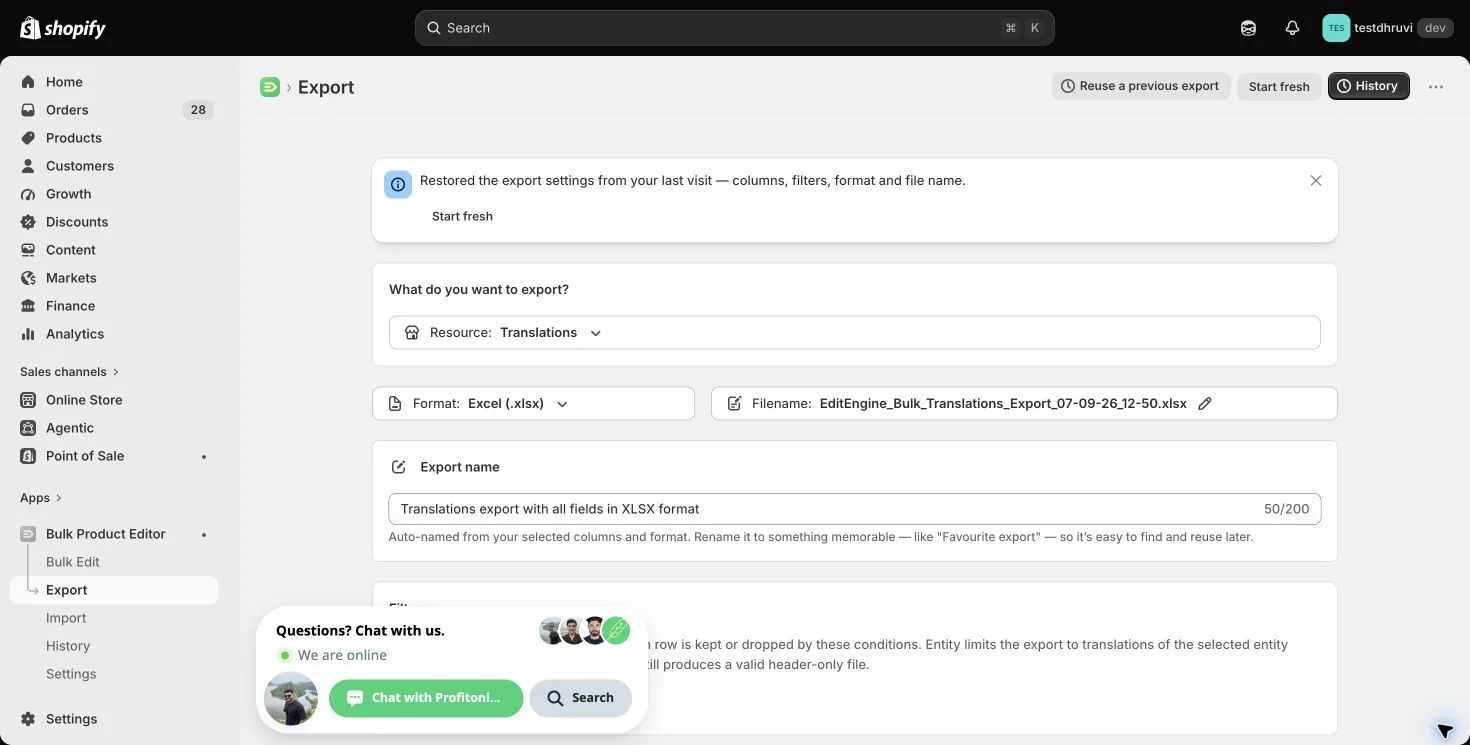
EditEngine writes one Translations worksheet. It scans supported Shopify resources and emits one row per translatable field and market scope only when at least one published non-primary locale has a non-empty translation for that field.
This means a store can produce a valid header-only Translations file when it has no existing translations. A filter that matches no translated entities also produces a header-only file. That is not an export failure.
Step 2 — Choose the round-trip columns
The Translations panel exposes nine selectable column controls: six base columns and three repeating language-column families.
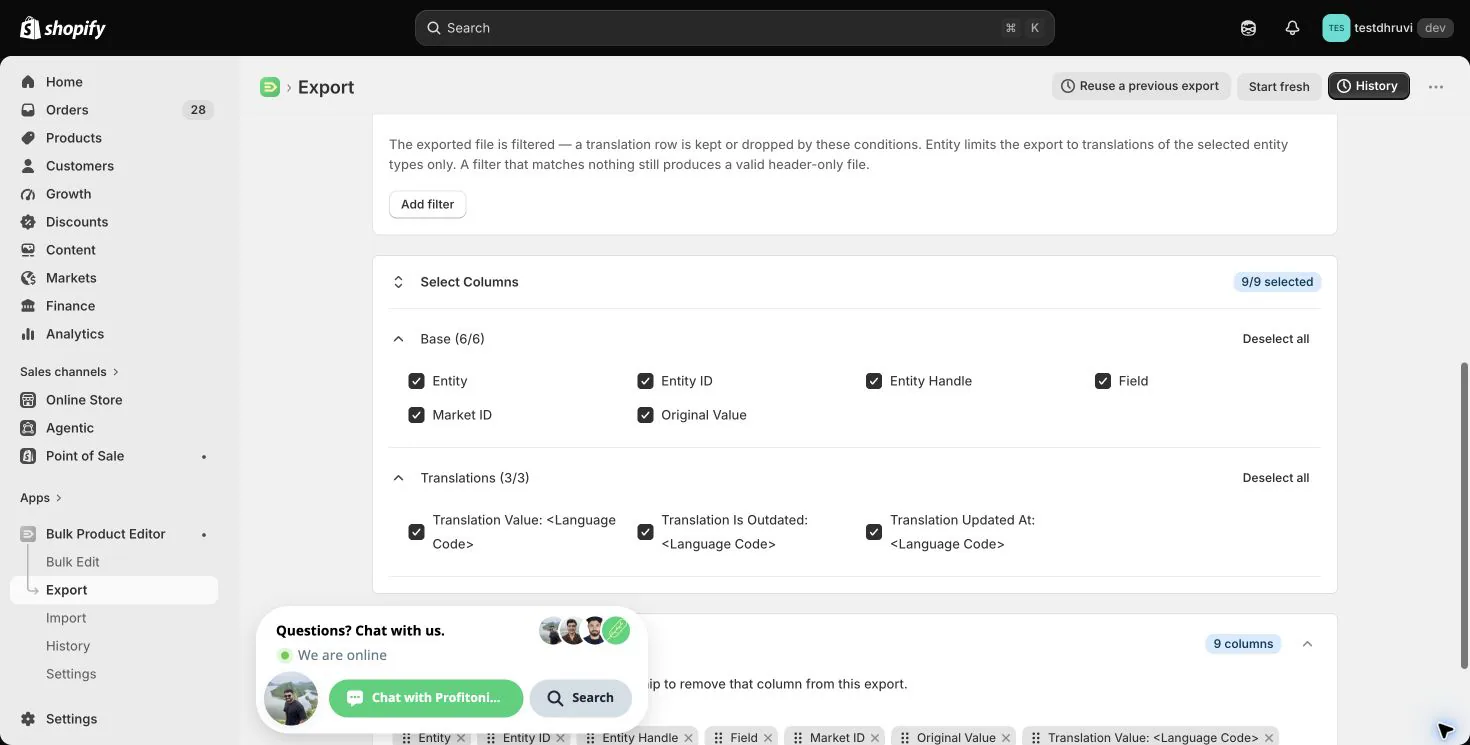
| Column | Round-trip meaning |
|---|---|
Entity | Required resource type, such as Product, Page, or Menu. |
Entity ID | Shopify's store-specific resource ID. EditEngine accepts a numeric ID or full GID. |
Entity Handle | Portable lookup key. Its format depends on the entity and field. |
Field | Required Shopify translatable field key, metafield key, or supported special field. |
Market ID | Blank for a global translation; a numeric Shopify Market ID or GID for a market override. |
Original Value | Current source-language value for review. It is export-only and ignored on import. |
Translation Value: <locale> | The value to register for that locale. A blank cell removes the targeted translation. |
Translation Is Outdated: <locale> | Export-only Shopify flag showing that the source value changed after translation. |
Translation Updated At: <locale> | Export-only Shopify timestamp for the translation. |
EditEngine always emits Entity, Entity ID, Field, and every applicable Translation Value: <locale> column so the file remains importable even if those controls are deselected. Market ID is also emitted when Shopify returns market scopes. Keep all columns in the untouched recovery copy.
Only published, non-primary locales get repeating translation columns. The locale code is part of the header, so do not rename Translation Value: fr to a human label such as French.
Step 3 — Filter by entity type
Use Add filter → Entity to limit the export to one or more supported resource types.
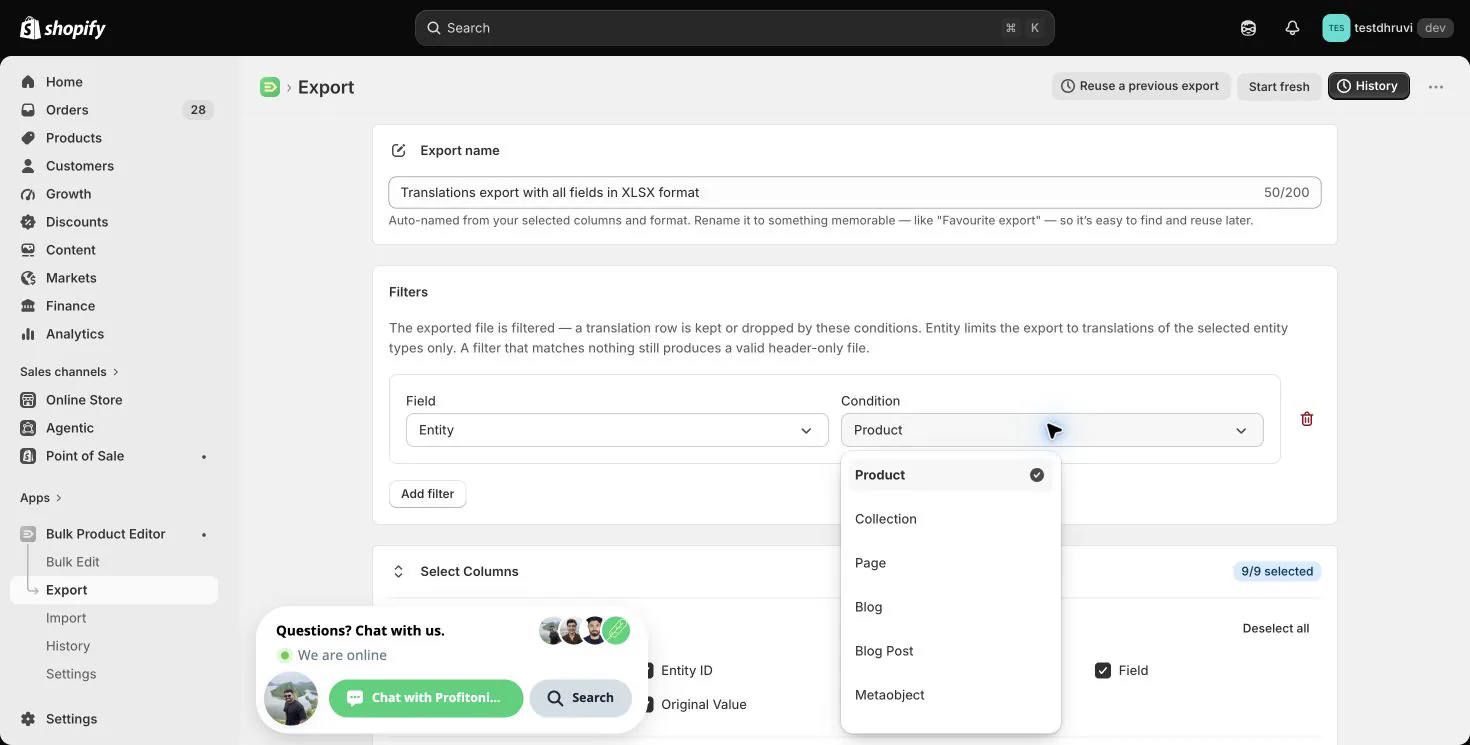
The production filter values are:
- Product
- Collection
- Page
- Blog
- Blog Post
- Metaobject
- Menu
- Shop
The Translations panel does not show a pre-export row count. The final row count depends on the matching resources, their translatable fields, market scopes, published non-primary locales, and which translations already contain values.
Step 4 — Understand the wide row model
Each row fixes four coordinates before the language columns are read:
EntityEntity IDorEntity HandleFieldMarket ID, blank for global or populated for one market
The dynamic locale columns then describe what to do at those coordinates. For example:
Entity,Entity ID,Entity Handle,Field,Market ID,Original Value,Translation Value: fr,Translation Value: de
Product,,summer-shirt,title,,Summer Shirt,Chemise d'été,Sommerhemd
Product,,summer-shirt,Body HTML,,<p>Light cotton</p>,<p>Coton léger</p>,<p>Leichte Baumwolle</p>
This file registers French and German translations for two Product fields. Keep HTML structure valid when translating rich-text fields.
The following distinctions are critical:
- A non-empty locale cell registers or updates that translation.
- A blank locale cell removes that translation for the row's field and market scope.
- Removing the entire locale column means no operation for that locale.
Original Value, outdated flags, and updated timestamps are never written back.
Step 5 — Identify the translated entity
Entity and Field are required. EditEngine resolves the resource in this order:
Entity IDEntity Handle- The current Shop resource automatically when
EntityisShop
This differs from Matrixify's documentation, which marks Entity Handle as mandatory. EditEngine accepts either Entity ID or a supported Entity Handle; use ID for the safest same-store update and a handle for a carefully prepared cross-store file.
Supported handle formats include:
| Target | Entity Handle format |
|---|---|
| Product fields | Product handle, for example summer-shirt. |
| Product option value | <product_handle>.<option value>. |
| Product variant metafield | <product_handle>.<variant title>; a bare product handle works only when the product has one variant. |
| Collection, Page, or Blog | That resource's handle. |
| Blog Post | <blog_handle>.<post_handle>. |
| Metaobject | <definition_handle>.<entry_handle>. |
| Menu title | Menu handle. |
| Menu item title | <menu_handle>.<item title path>. |
| Shop | Leave Entity Handle blank. |
Shopify IDs are store-specific. Do not use a source store's Entity ID to target a destination store.
Step 6 — Choose MERGE, UPDATE, or IGNORE
A blank or absent Command follows the selected Default Command, normally MERGE. An explicitly selected default of UPDATE or IGNORE is also honored. An explicit command in the spreadsheet row takes priority over that setting.
| Command | EditEngine behavior |
|---|---|
MERGE | Resolves the existing entity and registers non-empty locale cells or removes blank locale cells. |
UPDATE | Uses the same translation registration and removal behavior for an existing resolved entity. |
IGNORE | Skips the row without changing Shopify. |
Translations do not create their parent entities. Create or import the underlying resource first, then import its translation rows.
Before registering a value, EditEngine fetches Shopify's current translatable content and uses its current digest. A missing entity, unknown field, or stale/unavailable translatable key fails that row instead of writing against an unverified source value. Other healthy rows can continue.
Step 7 — Work with global and market-specific values
Market ID is an EditEngine extension to the Matrixify layout:
- Blank
Market IDtargets the global translation. - A numeric Market ID or full Market GID targets an override for that market only.
- Registering or removing a market override does not intentionally target the global value.
Keep market rows separate even when they share the same Entity, Field, and locale. If Shopify does not allow the export to enumerate markets, EditEngine degrades to global-only rows instead of inventing market IDs.
Market IDs are store-specific. For a cross-store import, map every source Market ID to the correct destination market or remove market-specific rows until you can do so safely. Clearing several different Market IDs can collapse distinct overrides into duplicate global instructions, so do not bulk-clear the column without reviewing each row.
Step 8 — Translate special fields safely
Most Field values come directly from Shopify's translatable content. EditEngine also resolves several targets that need extra context:
- Product option names and option values
- Product variant metafields
- Collection and Blog Post
Image Alt Text - Menu item titles
- Resource metafields by namespace and key
The entity and field must be a valid combination. Collection and Blog Post image alt translation requires an image. A menu item title path must resolve unambiguously. A metafield key must resolve to an actual metafield on the resource. EditEngine fails an invalid row rather than guessing a target.
For menu items, use the exported handle path unchanged when possible. Duplicate or changed item titles can make a title path ambiguous.
Step 9 — Remove translations intentionally
To remove one translation, keep the row identity and locale header intact, then blank only the intended Translation Value: <locale> cell.
Entity,Entity Handle,Field,Market ID,Translation Value: fr,Translation Value: de
Page,shipping,Body HTML,,,Versandinformationen
This row removes the global French translation for the Page body while registering the German value. It does not remove German and does not target any market override.
If you do not want to touch French at all, delete the entire Translation Value: fr column instead of leaving its cells blank. Keep an untouched export because removed translations are not restored automatically.
Step 10 — Move translations between stores
To move translated content to another Shopify store:
- Create or import the destination resources first.
- Export Translations from the source store and keep an untouched copy.
- Remove source-store
Entity IDvalues. - Keep only supported Entity Handle values that resolve uniquely in the destination store.
- Confirm that every locale-code column represents a published destination locale.
- Map source Market IDs to destination Market IDs, or omit market-specific rows until mapping is complete.
- Review blank locale cells so they do not remove destination translations accidentally.
- Test one entity and one locale before importing the larger file.
The destination source text can differ from Original Value; that column is informational. EditEngine always obtains the destination resource's current Shopify digest before writing the translation.
Step 11 — Upload through Advanced import
Open EditEngine → Import, select Advanced import, and upload the edited CSV or XLSX.
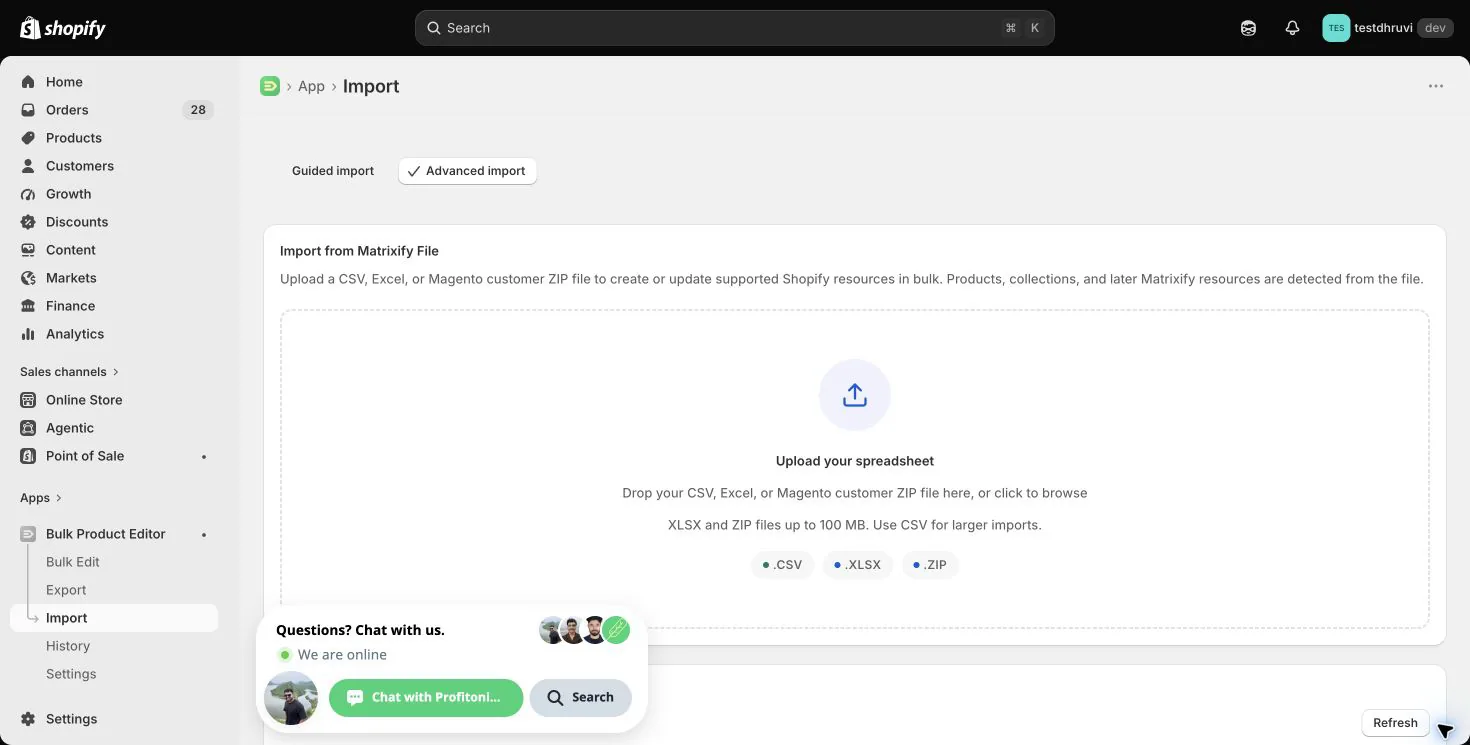
For XLSX, keep the worksheet named Translations or Translation. A CSV has one logical sheet; keep the standard headers and use a descriptive file name.
After analysis, verify:
- The detected resource is Translations.
- The sheet and row count match the intended working file.
- Every row has Entity, Field, and either a valid Entity ID or supported Entity Handle, except Shop rows.
- Every
Translation Value: <locale>header uses the intended destination locale code. - Blank translation cells are deliberate removals.
- Every Market ID belongs to this store and targets the intended market.
- Every special handle and field resolves unambiguously.
- Shopify has granted the needed translation and resource read scopes plus
write_translations.
Run the smallest test file first. Download the result and review Import Status and Import Comment for row-level failures before importing more translations.
Step 12 — Verify the round trip
Do not rely only on the completed job status:
- Open the translated resource in Shopify Admin and inspect the affected languages.
- Check global values and every changed market override separately.
- Preview the storefront in the relevant language and market context.
- Verify rich text, links, placeholders, punctuation, and right-to-left rendering where applicable.
- Create a fresh focused Translations export and compare entity identity, Field, Market ID, and locale values with the intended result.
- Keep the result file beside the untouched pre-import export.
The untouched export is a manual recovery source, not an automatic rollback. Restore a removed or incorrect translation through another reviewed import or Shopify Admin.
Common mistakes
Using Guided import. Translations use the Matrixify-shaped Advanced Import path.
Leaving a translation cell blank to mean “unchanged.” A blank cell removes that locale's translation. Remove the whole locale column when you want no operation.
Expecting untranslated fields to appear. EditEngine emits rows only when at least one published non-primary locale already has a non-empty translation for that field.
Expecting the primary or an unpublished locale. Only published non-primary locales become translation columns.
Editing Original Value. It is export-only. Change source-language content through its source resource or Shopify Admin.
Keeping source-store Entity or Market IDs. Both kinds of ID belong to one Shopify store.
Clearing all Market IDs blindly. Different market overrides can become competing global instructions.
Using a partial handle for a special target. Blog posts, metaobjects, product option values, variant metafields, and menu items need the documented composite handle format.
Assuming a translation row creates its entity. Import the parent resource first.
Treating outdated flags or timestamps as import controls. EditEngine exports them for review but ignores them on import.
Related tutorials
- Import and export resource availability — check public, restricted, and export-only workflows.
- Bulk create Shopify products from a spreadsheet — prepare product source content before translating product fields and options.
- Export and import Shopify Pages — move page content before its translations.
- Export and import Shopify Blog Posts — prepare blogs, articles, and their image alt text.
- Export and import Shopify Menus — create menu trees before translating menu and item titles.
- Export and import Shopify Metaobjects — prepare definitions and entries before moving metaobject translations.
About EditEngine: EditEngine Bulk Product Editor helps Shopify merchants bulk edit, import, and export store data from spreadsheets. Install on Shopify →