
Finance and reports
Shopify Payouts: Export and Reconcile
Published by Profitonium Apps · Last updated
Use the Payouts resource to export Shopify Payments transfers and, optionally, the balance transactions that make up each payout. The Matrixify-shaped CSV or XLSX file is designed for accounting, reconciliation, pivot tables, and offline reporting.
Payouts are export-only. Shopify does not let EditEngine import, update, replace, or delete payout records. A downloaded Payouts sheet is a report, not a round-trip backup.
This guide follows the official Matrixify Payouts sheet format and Matrixify Payouts export tutorial. The column layout is familiar, but the filter options and a few GraphQL-derived values differ in EditEngine as explained below.
Before you start
- Your store must use Shopify Payments to have payout data.
- Grant
read_shopify_payments_payoutsandread_shopify_payments_accountswhen EditEngine asks. Both scopes are required because payouts are exposed through the Shopify Payments account. - Treat the export as sensitive financial data. Limit access to the downloaded file and delete temporary copies when your reconciliation is complete.
- Decide whether you need payout totals only or the much larger transaction breakdown.
- Choose the date range in the store's time zone and record the range with your accounting workpapers.
- Do not upload a Payouts sheet through Advanced Import. There is no executable Payouts import command.
EditEngine does not request Shopify Payments bank-account access for this export, and the sheet does not contain bank-account details.
Step 1 — Select Payouts
Open EditEngine → Export, choose Payouts, and select CSV or Excel format.
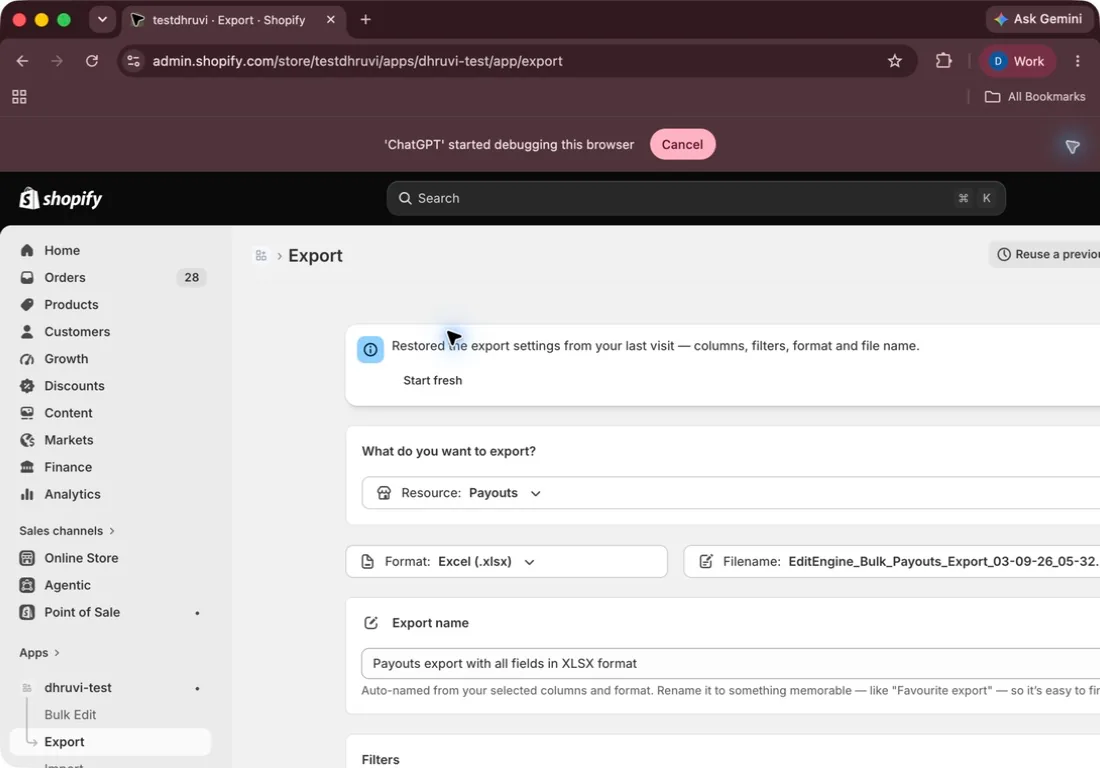
The Payouts panel has no pre-export count. A store without Shopify Payments, a development store whose test transactions never form payouts, or a filter with no matches can produce a valid header-only file instead of an error.
If your plan applies a per-task export cap, it is counted in payouts, not spreadsheet rows. Adding transaction rows does not turn one payout into several items for that cap.
Step 2 — Choose the six payout columns
The six Base columns are selected by default. The 14 Transaction columns are optional and start deselected.
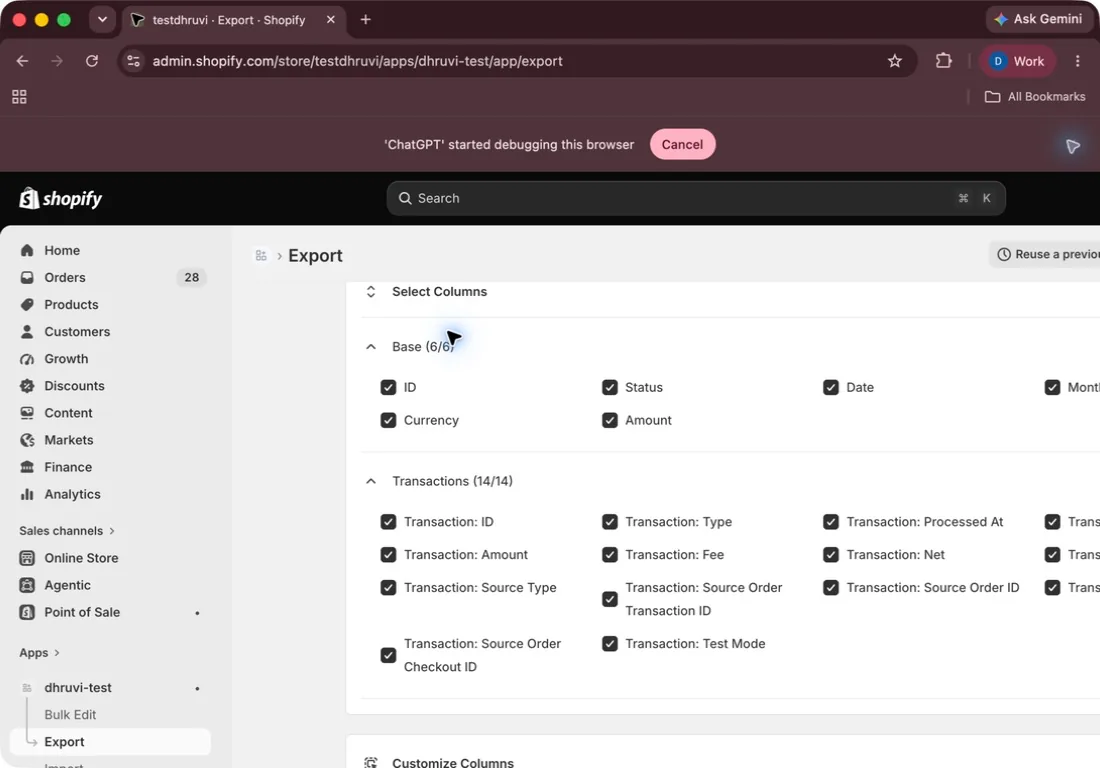
| Base column | Meaning |
|---|---|
ID | Numeric Shopify payout ID. EditEngine always emits it, even if deselected. |
Status | Lower-case state returned by Shopify, such as scheduled, in_transit, paid, failed, or canceled. Transaction-side fallback records can include other states such as pending or action_required. |
Date | Payout issue date and time rendered in the store's time zone. |
Month | The same payout date reduced to YYYY-MM for grouping and pivot tables. |
Currency | Currency code from the payout's net amount. |
Amount | Net payout amount expected to be transferred after fees. |
Without Transaction columns, EditEngine emits one row per payout. ID is always included, but the selected column order can move its position; other deselected Base columns are omitted.
Step 3 — Add the transaction breakdown only when needed
Selecting any Transaction column makes EditEngine also read Shopify Payments balance transactions and expand the sheet.
| Transaction column | Meaning |
|---|---|
Transaction: ID | Numeric balance-transaction ID. |
Transaction: Type | Lower-case type such as charge, refund, dispute, adjustment, or payout. |
Transaction: Processed At | Transaction timestamp in the store's time zone. |
Transaction: Currency | Transaction currency code. |
Transaction: Amount | Gross transaction amount. |
Transaction: Fee | Shopify Payments fee amount. |
Transaction: Net | Transaction amount after its fee. |
Transaction: Source ID | Shopify ID of the source that caused the transaction, when available. |
Transaction: Source Type | Lower-case source type, such as charge, refund, or dispute. |
Transaction: Source Order Transaction ID | Related Shopify order-transaction ID, when available. |
Transaction: Source Order ID | Related Shopify order ID, when available. |
Transaction: Source Order Name | Related order name, such as #1001, when available. |
Transaction: Source Order Checkout ID | Kept for Matrixify column familiarity, but always blank in EditEngine because Shopify Admin GraphQL provides no equivalent field. |
Transaction: Test Mode | TRUE when Shopify marks the transaction as test mode; otherwise blank. |
With Transactions enabled:
- each transaction becomes one row;
- the payout ID, Status, Date, Month, and Currency repeat on those rows;
- payout
Amountappears only on the first row for that payout, so summing the Amount column does not multiply the payout total; - a payout with no matching transactions still gets one payout-only row; and
- a balance transaction with no associated payout is not included in the Payouts sheet.
If a transaction's associated payout is missing from the full payout snapshot, EditEngine can fall back to the payout ID and status supplied with that transaction. Date, Month, Currency, and Amount may then be blank. A missing Amount is not zero: investigate the incomplete record and obtain a complete payout report before using it for reconciliation. Preserve the actual status token rather than treating pending as scheduled.
The Source Order fields depend on Shopify order access. If Shopify denies that optional order lookup, EditEngine retries the transaction crawl without the related order object and leaves the Source Order columns blank instead of failing the complete payout export.
Step 4 — Filter at payout level
Select Add filter to restrict which payouts are included.
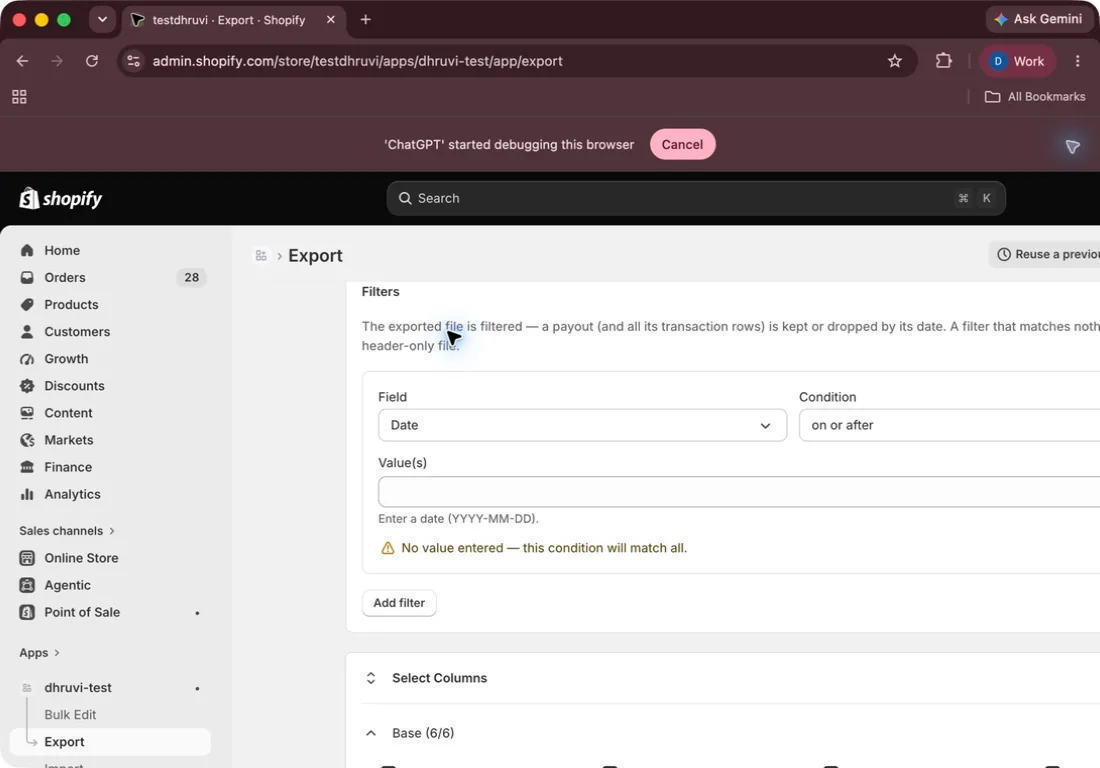
Every filter is evaluated against the payout. When one payout matches, all of its included transaction rows stay together; when it does not match, the payout and all those rows are removed.
EditEngine exposes five filter fields:
| Field | Conditions |
|---|---|
| Date | on or after, on or before, date range, relative date |
| ID | equals any of, does not equal any of |
| Status | Paid, Scheduled, In transit, Canceled, Failed |
| Currency | equals any of, does not equal any of, matches pattern |
| Amount | equals any of, does not equal any of, matches pattern |
Date conditions use the store's time zone. Relative Date means the last full number of days, weeks, or months, excluding the current incomplete period. For example, last full 1 day means yesterday in the store's time zone.
Currency and Amount use text matching. Amount does not offer numeric greater-than or less-than conditions. In a pattern, * is the wildcard—for example, 12* matches textual amounts beginning with 12.
You can combine multiple conditions with all or any. A blank condition matches everything and shows a warning. Filters are applied while EditEngine builds the file, so they do not change a displayed count; Payouts has no count badge. A zero-match filter produces a valid header-only sheet.
Matrixify documents Date as the Payouts filter. EditEngine intentionally adds ID, Status, Currency, and Amount filters.
Step 5 — Read the payout states correctly
Use Status and Date together when reconciling:
scheduled— Shopify has scheduled the transfer.in_transit— Shopify has submitted the payout to the bank, but it has not arrived yet.paid— the payout was deposited.failed— the bank did not accept the payout.canceled— the payout was canceled.
Do not count scheduled or in_transit as confirmed bank deposits. Recheck those payout IDs after Shopify updates their status.
EditEngine renders Date, Month, and Transaction: Processed At in the store's IANA time zone. If that setting cannot be read, the export falls back to UTC rather than failing. The resolved time zone is kept stable when an interrupted export resumes.
Step 6 — Reconcile the spreadsheet
For a payout-summary report:
- Keep the six Base columns only.
- Filter the accounting period by Date.
- Group or pivot by Month, Currency, and Status.
- Sum
Amountonce per payout. - Compare paid payout IDs and amounts with the connected bank account.
For a transaction-level investigation:
- Select the Transaction fields you actually need.
- Group rows by payout
ID. - Use Transaction Type, Amount, Fee, and Net to inspect the components.
- Use Source Order ID or Name to investigate related orders when available.
- Keep
Amountas the payout total; do not fill its intentionally blank repeated cells.
Transaction timing and types can make a simple sum misleading, so investigate discrepancies instead of assuming every subset must equal the payout amount independently.
Step 7 — Understand why there is no import step
Advanced Import recognizes the Payouts and Payout sheet names for compatibility checks, but the resource has no live import adapter and no executable commands. Shopify payout records are financial system records, not merchant-editable content.
Do not add Command, edit payout values, or upload the exported file expecting changes. EditEngine cannot use it to:
- mark a payout paid;
- change its amount, currency, date, or status;
- attach a transaction to another payout;
- replace or delete a payout; or
- restore payout records in another store.
Use Shopify Admin and your payment or banking workflow to investigate discrepancies. Keep the Payouts spreadsheet only as a reporting artifact.
Step 8 — Verify the report
After the export completes:
- Confirm the worksheet is named Payouts.
- Check that the earliest and latest Date match the intended accounting period.
- Confirm each payout ID appears once without Transactions; with Transactions, group or filter by payout ID and verify its associated rows.
- For complete payout records, verify Amount is populated only once across the rows for that payout ID. Investigate missing payout amounts rather than treating them as zero.
- Compare a sample of paid payouts with Shopify Admin → Finance → Payouts and the connected bank statement.
- Check failed, canceled, scheduled, and in-transit payouts separately.
- Store the final file in an access-controlled accounting location.
Common mistakes
Trying to import the sheet. Payouts are export-only in both EditEngine and Matrixify.
Expecting data on a store without Shopify Payments. The result can be a valid header-only file.
Expecting test transactions to form real payouts. Shopify development-store test payments generally do not produce payout records.
Selecting Transactions for a summary-only report. The optional breakdown can create many rows per payout.
Summing repeated payout Amount values. EditEngine intentionally writes a known Amount only on the first encountered row for each payout ID. Do not fill the later blanks or interpret an unavailable payout amount as zero.
Treating Amount filters as numeric comparisons. They are exact or wildcard text matches.
Expecting Source Order columns without order access. EditEngine preserves the export and leaves those cells blank when the optional order lookup is denied.
Expecting Source Order Checkout ID values. The compatibility column is always blank because the current Shopify Admin GraphQL source has no equivalent value.
Using the report as proof of bank settlement. Confirm paid payouts against the bank statement.
Related tutorials
- Export Shop details and import metafields — capture store currency and time-zone context alongside financial reports.
- Recalculate prices from product cost — review catalog margin assumptions separately from actual payouts.
- Mark up Shopify prices from cost — update selling prices after reviewing costs and fees.
- Edit Shopify variant prices — maintain the product prices that feed future sales.
About EditEngine: EditEngine Bulk Product Editor helps Shopify merchants bulk edit, import, and export store data from spreadsheets. Install on Shopify →