
Orders and fulfillment
Bulk Update Shopify Draft Order Quantities
Published by Profitonium Apps · Last updated
Use EditEngine to change the quantity of a matched line on an open or invoice-sent Shopify Draft Order. The file uses Command = UPDATE to target the existing draft and Line: Command = MERGE to change the matched line while retaining the draft's other lines.
Use this task before the draft is completed. A completed Draft Order already produced an Order, and EditEngine permits only tags-only updates on that completed draft. A quantity import for it fails.
This guide was checked against the official Matrixify Draft Orders reference and Draft Orders import tutorial. That tutorial includes creating, invoicing, and completing drafts. The focused EditEngine file below only requests an existing-line quantity update.
Step 1 — Export the editable draft and its lines
Open EditEngine → Export, select Draft Orders, and choose CSV or Excel.
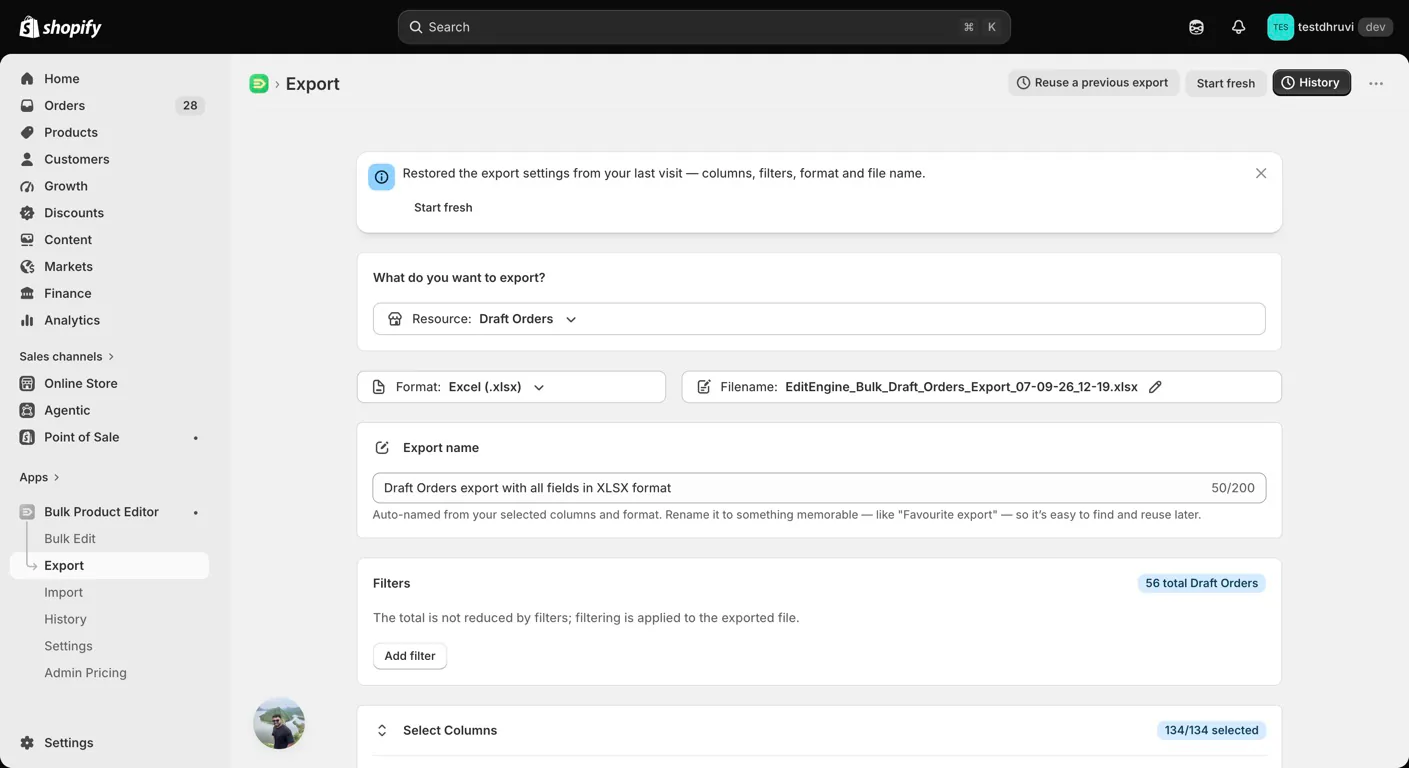
For the first test, select one non-critical draft in Shopify that is still Open. In the export panel, add an ID filter for that draft and a Status filter for Open, with the conditions set to match all. For a later invoice-sent draft, use Invoice Sent instead. Exclude Completed drafts from every quantity-update file.
The count badge is the unfiltered total; it does not shrink as you add filters. Line filters also select the whole matching draft, so an export can still contain its other lines. Check the downloaded rows, not just the badge.
Export at least ID, Name, Status, Line: Type, Line: ID, Line: Title, Line: SKU, Line: Quantity, Line: Price, and Line: Properties so you can identify the intended line and compare it afterward. Include discounts, shipping, and totals in your backup when those affect the draft.
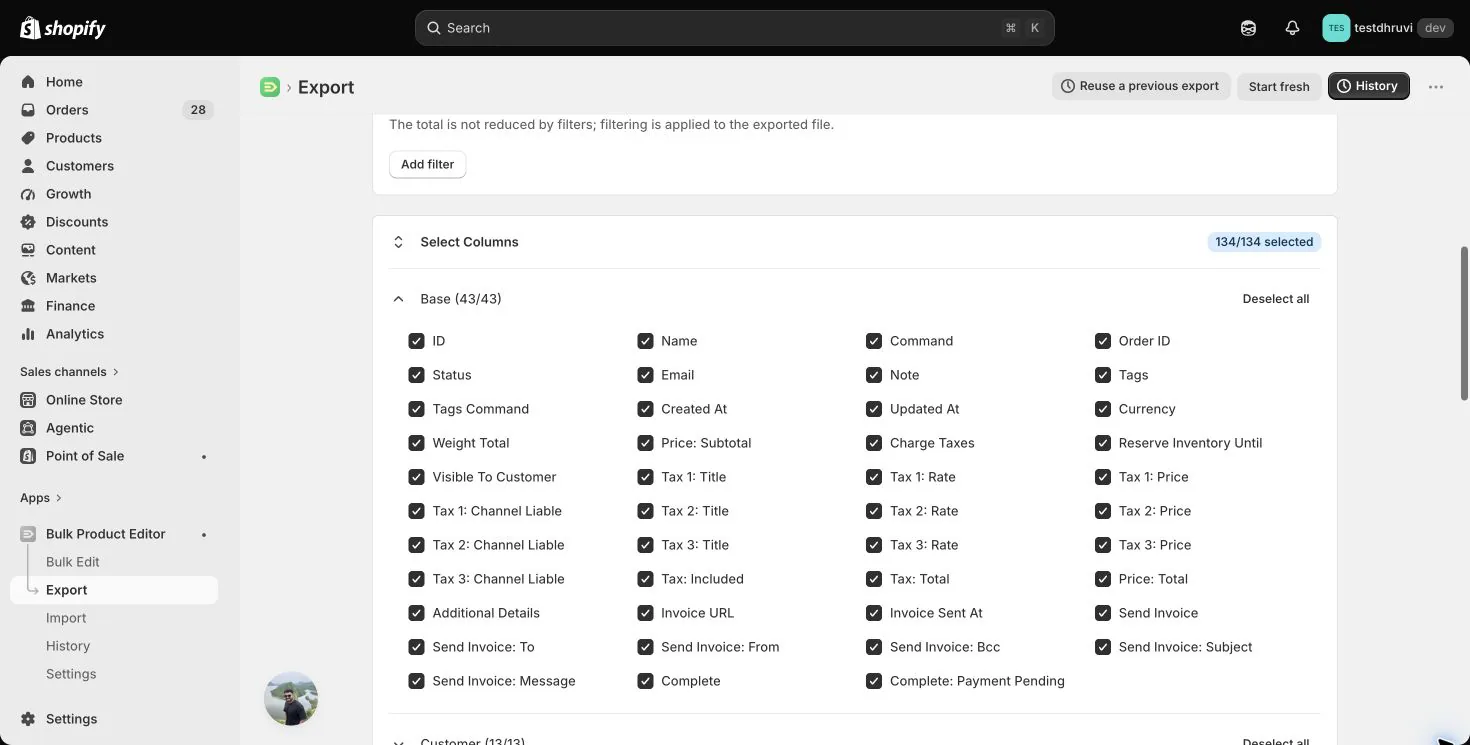
All 134 Draft Orders controls are selected by default. You can keep that complete export as the untouched backup, then prepare a separate minimal import file. Review the filters and create your export. Download it before editing any values.
Step 2 — Identify one existing line
In the export, locate the intended Draft Order ID and its Line Item row. Use that row's fresh Line: ID for the update. A Draft Order ID identifies the draft; a Line ID identifies the item inside it. They are different values, and neither can be copied from another store.
Keep a record of the original quantity, price, discounts, properties, other line quantities, and draft total. Do not use a Discount or Shipping Line row as the product line.
Use only one row for each intended line. Repeating the same Line ID can combine quantities when the other values agree; conflicting repeated values can fail. Do not copy the same line twice to represent the same change.
Step 3 — Prepare the quantity-only CSV
Create a new CSV or an XLSX worksheet with these six headers. Replace both sample IDs with the exact values from your export. This example sets the existing line's quantity to 3:
ID,Command,Line: Type,Line: Command,Line: ID,Line: Quantity
1234567890,UPDATE,Line Item,MERGE,2345678901,3| Header | Purpose |
|---|---|
ID | Existing Draft Order ID. UPDATE fails if that draft is not found. |
Command | UPDATE, to avoid creating a draft on a lookup miss. |
Line: Type | Line Item, to identify the line shape. |
Line: Command | MERGE, to retain the current line list and modify a match. |
Line: ID | Existing line ID from the same draft. |
Line: Quantity | Intended final whole-number quantity, at least 1. |
Save it as Draft Orders.csv, or name the XLSX worksheet Draft Orders. Keep the IDs as text to preserve all digits. For more intended lines, repeat the Draft Order ID on each row and use the correct distinct Line ID. Do not leave draft identities blank on continuation rows.
MERGE is not a guarantee that a line will match. It can append an item when no existing line matches and enough item data is supplied. Prefer the minimal Line-ID file above and verify its match before importing. Avoid adding SKU, Title, product, or variant lookup columns as speculative fallbacks: they can select another line or provide data for a new one.
A matched MERGE quantity is the final value, not an amount to add. Blank quantity preserves an existing matched quantity, but fill it explicitly for this task. Zero, negative values, and fractions are invalid; this recipe does not remove lines.
Omit price, discount, properties, tags, metafields, customer, address, Status, invoice, and completion columns entirely. Do not import the whole backup. A blank Line: Command defaults to REPLACE, which can replace the complete line list with the supplied rows. Keep MERGE explicit.
Step 4 — Review and test in Advanced Import
Open EditEngine → Import, select Advanced Import, and upload the one-draft test file.
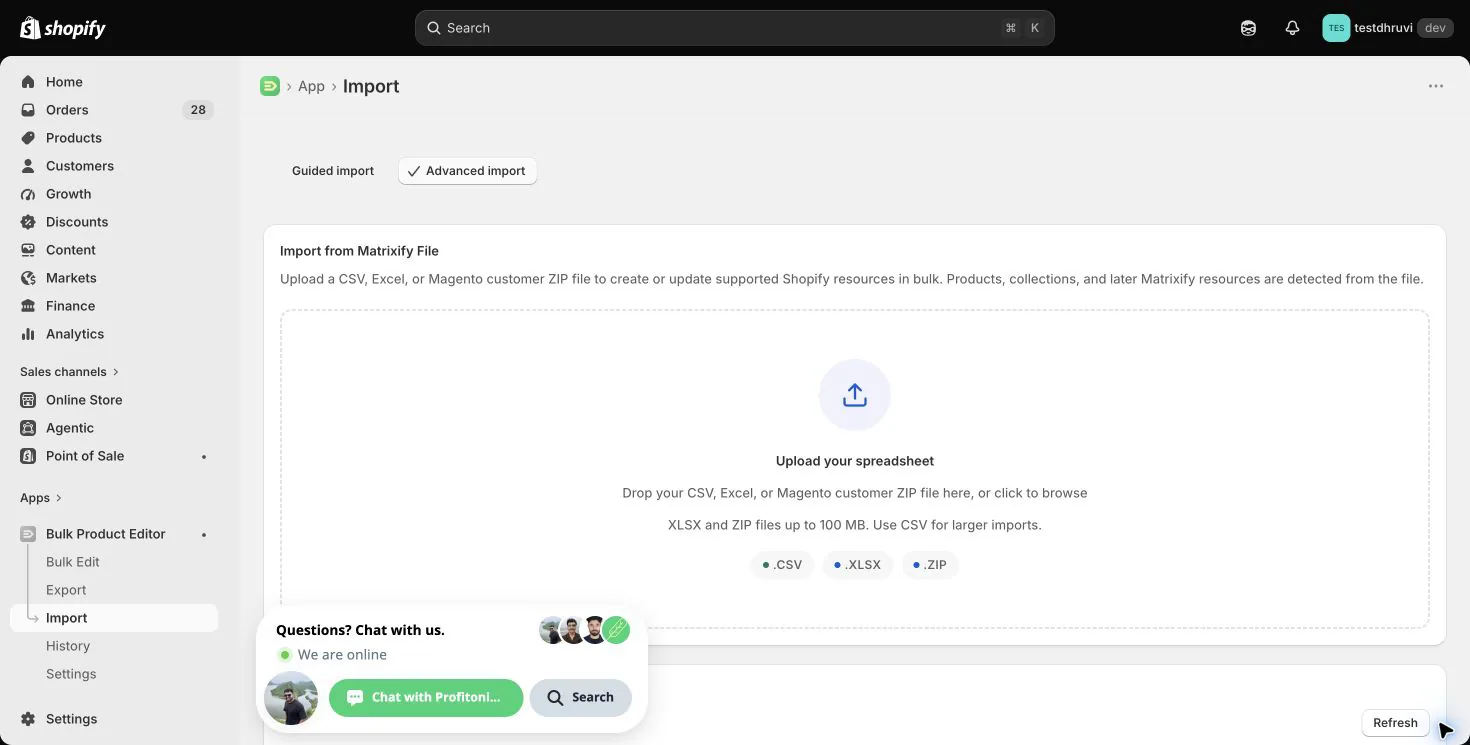
Confirm that EditEngine detects Draft Orders, selects the intended sheet, and recognizes the six headers. Review the row-count information, Command = UPDATE, and Line: Command = MERGE. Check the spreadsheet itself to verify both IDs and the quantity.
Review the detected headers and any sample rows shown. A sample is not a full-file or before-and-after validation. Before starting your test import, confirm in Shopify that the draft is still Open or Invoice Sent and the target line has not changed since export.
Do not add Send Invoice, Complete, Complete: Payment Pending, DELETE, or REPLACE to this file. Sending an invoice or completing a draft is a separate operation. Complete any requested draft-order access step in the app, then start the single-draft test.
Step 5 — Check the entire draft
After completion, download the result file and investigate every failed or warning row. Open the draft in Shopify and check:
- The intended line now has quantity
3, and the line count has not unexpectedly increased or decreased. - Other line quantities and properties are retained.
- The target's unit price and discount are correct, and the new totals reflect the changed quantity.
- Customer details, addresses, tags, and metafields still match your intended draft state.
- No invoice send or completion was requested by this file, and no resulting Order was created by the workflow.
Matched custom lines retain omitted price and property values in EditEngine. Product-backed lines remain linked to their variants; review their price and Shopify's recalculated totals rather than treating an old exported total as fixed. Invoice-sent drafts deserve the same total review before you take any separate invoice action.
Re-export the same Draft Order ID, compare it with the backup, and only then expand the file to the remaining editable drafts. If a row failed, inspect the current draft before retrying: a failure does not replace the need to verify its actual state.
Correcting a quantity later
Advanced Import does not provide the bulk editor's one-click undo. To restore the old quantity, make a fresh export, verify that the draft is still editable, and build another minimal UPDATE/MERGE file using the current Line ID and original quantity from your backup. Do not replay the complete backup with default REPLACE line commands.
Draft line IDs can change after later edits, so re-check them before a corrective import. If the draft has completed, stop: its quantities cannot be changed through this Draft Orders workflow. Review the resulting Order separately.
Related tutorials
- Draft Orders export and import — other draft fields, row commands, invoices, and completion.
- Draft Orders column reference — all 134 controls and their blank-cell behavior.
- Update existing order tracking — correct a real fulfillment after an order exists.