
Pricing
Bulk Update Shopify Discount End Dates
Published by Profitonium Apps · Last updated
Extend the expiry of existing Shopify code or automatic discounts with EditEngine Bulk Editor. A focused Advanced Import file needs four columns: the original discount ID, Command=UPDATE, its unchanged Method, and a new Ends At timestamp.
This updates the existing definition. It preserves omitted discount values, targets, eligibility, redeem codes, and usage history. It does not reset usage limits or change product catalog prices.
Discounts imports are publicly available in EditEngine with the required Shopify permissions. Use a supported Shopify discount, such as Amount off Order, Amount off Products, Buy X Get Y, or Free Shipping. Discounts exported with Type App have their configuration managed by another app and cannot use this update workflow.
Step 1 — Export the promotions you want to extend
Open EditEngine → Export, choose Discounts, and select CSV or Excel format.
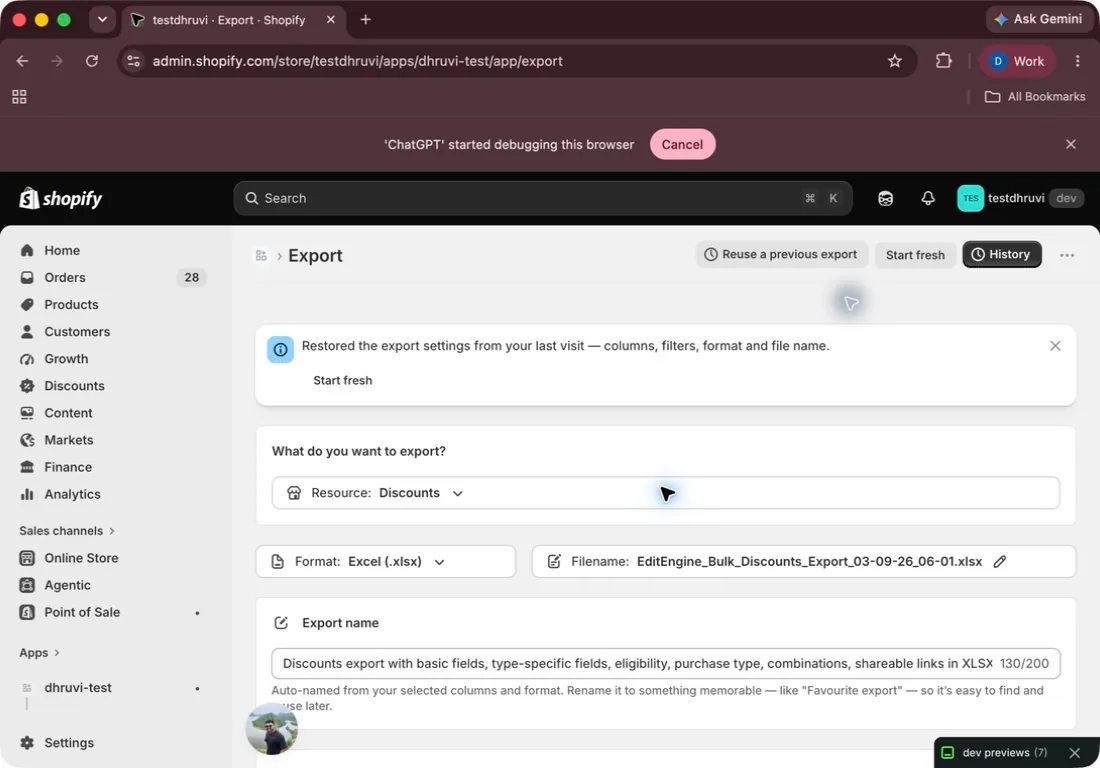
Use Add filter to select the intended discounts. For a first test, use ID → equals any of with the chosen discount's ID, or Title → equals any of with its exact title. Discount Code → equals any of can identify code discounts; automatic discounts have no code.
For a larger promotion set, you can combine Method, Status, or Ends At conditions. Check whether the conditions must match all or any, and remove blank filters. A Status=Active filter excludes already-expired discounts, so do not retain it if those are the promotions you intend to extend.
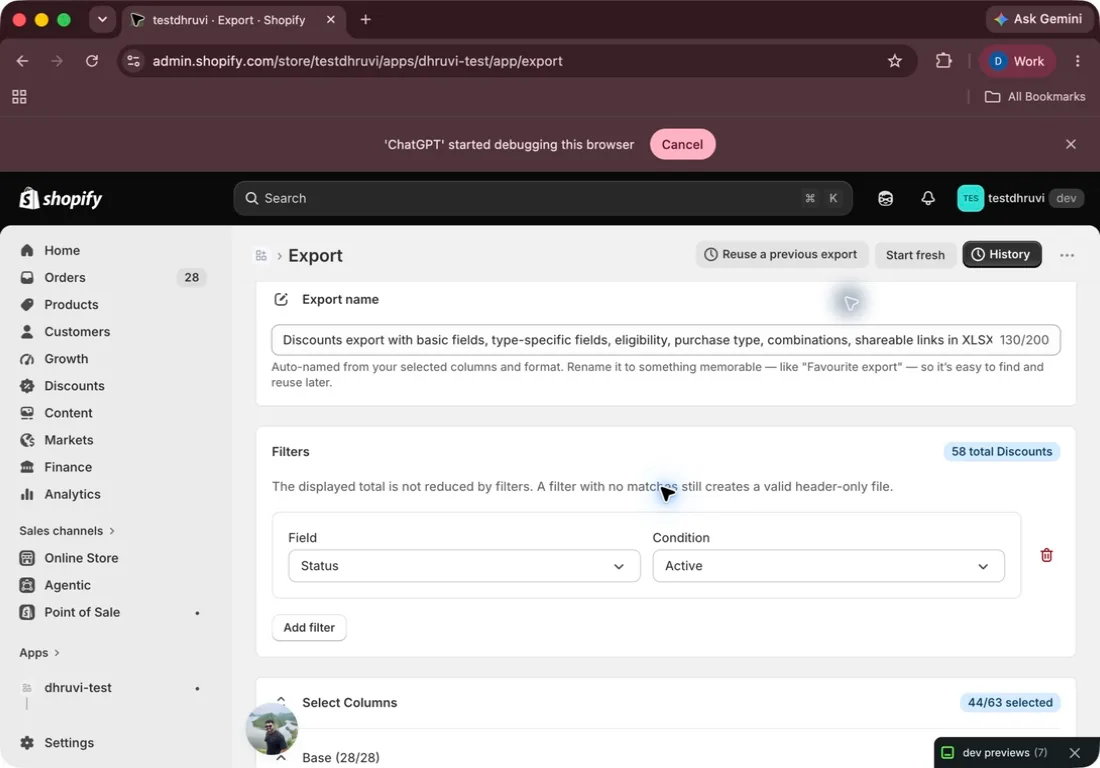
The displayed total counts the store's discount definitions and does not shrink with filters. A definition with several redeem codes can also export several rows. Check the downloaded records rather than treating the displayed total or spreadsheet row count as the number of promotions you will update.
Step 2 — Save the original end dates
Under Base columns, retain ID, Command, Title, Method, Type, Starts At, and Ends At. Title and Type help you confirm the intended promotion; Starts At lets you check the new end date. You may retain the other current definition columns in the untouched backup for comparison after the update.
Create the focused export and download it. Save an unchanged copy before editing. Inspect every selected discount's Type, Method, original start and end dates, and any duplicate rows for additional redeem codes.
This recipe extends an existing expiry. If Ends At is currently blank, the discount has no scheduled end; supplying a date would add an expiry rather than extend one. Choose that deliberately in a separate test.
Step 3 — Keep just the four update columns
Create a working copy with one row per discount ID and exactly these headers:
| Column | What to enter |
|---|---|
ID | The unchanged ID from this store's export. Preserve its full value as text. |
Command | UPDATE, so an absent record fails instead of creating a new discount. |
Method | The exported Code or Automatic value. Do not switch methods. |
Ends At | The desired date and time with an explicit timezone offset. |
ID,Command,Method,Ends At
gid://shopify/DiscountCodeNode/91001,UPDATE,Code,2026-10-31 23:59:00 +0530
gid://shopify/DiscountAutomaticNode/91002,UPDATE,Automatic,2026-10-31 23:59:00 +0530
These are sample IDs. Replace them with your own exported IDs and retain the correct Method for each. The sample timestamp means 31 October 2026 at 11:59 p.m. in UTC+05:30. Use the timezone offset that applies to your intended promotion time; do not rely on your spreadsheet's display format to supply it.
For an extension, set Ends At later than the original end date and later than Starts At. The existing discount determines its type. Remove Type, Title, Code, Code Command, Value, targets, eligibility, tags, and combination columns from this date-only import copy; they are not needed to preserve those settings.
Keep one authoritative row per definition even if the backup has several code rows. Save Excel files with a worksheet named Discounts. Name the CSV exactly Discounts.csv: the short four-column file does not otherwise reliably identify this resource. Make a separate one-discount test copy with the same exact filename, stored in a different folder from the full file.
Step 4 — Review the test file in Advanced Import
Open EditEngine → Import, select Advanced import, and upload the one-discount file.
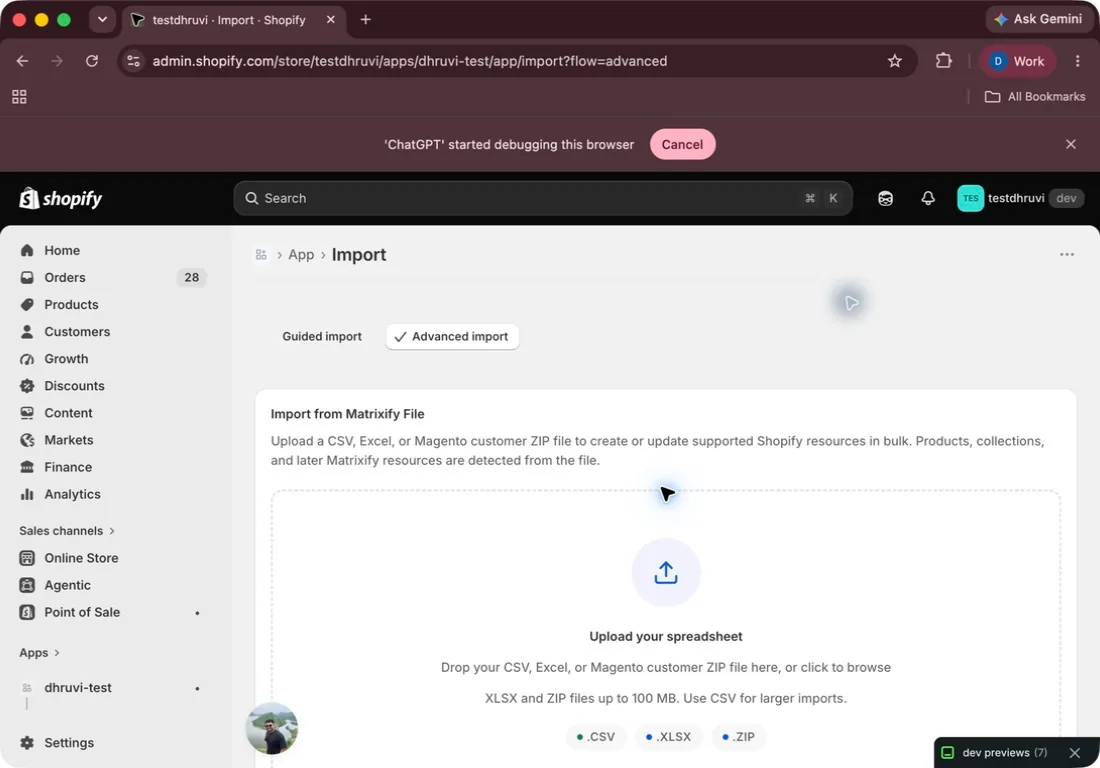
Confirm that EditEngine detects Discounts and recognizes ID, Command, Method, and Ends At. If Products is detected, stop and correct the filename or worksheet name before uploading again. Resolve any unknown-header or missing-permission warning. Review the detected headers and any sample rows shown. A sample is not a full-file or before-and-after validation; check the actual IDs, methods, commands, dates, and row count in the spreadsheet too.
Keep UPDATE explicit. Do not substitute REPLACE to get past a validation error: discount REPLACE deletes and recreates the definition with a new ID and loses its prior usage history.
Step 5 — Verify one promotion before extending the rest
Start the one-discount test. Download the result file when it finishes and read the row status and comments. An import can complete while individual records fail.
Open the discount in Shopify Admin → Discounts and verify:
- Ends At displays the intended moment in the store's timezone.
- Starts At, method, value, targets, eligibility, and combinations are unchanged.
- The existing redeem codes remain for a code discount, and the original discount ID and usage history are intact.
After this test passes, import the remaining rows. Review every result and create a fresh focused Discounts export to compare the new end dates with your intended file.
Status is a reporting field derived from dates and Shopify state; editing a Status cell does not update the discount. A later expiry also does not bypass usage limits, customer eligibility, or other checkout rules.
Blank end dates and Matrixify differences
Do not leave Ends At blank to remove an expiry. EditEngine's current UPDATE path treats a blank end-date value as no date change. This differs from the blank-means-no-expiry behavior described in the Matrixify Discounts reference. This tutorial uses an explicit nonblank timestamp.
The official Matrixify discount-import tutorial uses an existing export as a template for creating new discounts and removes their IDs. For this same-store EditEngine update, keep the original ID and Method. UPDATE must find that record; it does not create a replacement promotion on a miss.
If a row fails or the new date is wrong
If the record is missing, check the ID and Method against a fresh export from the same store. If the end date is not after the start date, correct the timestamp. A Type App discount must be managed through its owning app. Do not broaden the file or change commands to work around these errors.
Advanced Import has no one-click undo. To restore an earlier nonblank end date, prepare another four-column UPDATE using the original timestamp from your backup, after checking for legitimate changes made since the export. Restoring a past end date can expire the promotion again. If the intended recovery is to remove expiry entirely, use Shopify Admin instead of importing a blank Ends At.
Related tutorials
- Discounts export and import — discount types, redeem codes, eligibility, and supported commands.
- Add Shopify customer tags — label selected customers with a separate focused import.
- Bulk markdown Shopify sale prices — change catalog prices instead of checkout-discount dates.
About EditEngine: EditEngine Bulk Product Editor helps Shopify merchants bulk edit, import, and export store data from spreadsheets.