
B2B companies
Bulk Update Shopify Company Notes
Published by Profitonium Apps · Last updated
Availability: Companies export is available where Shopify grants B2B company access. Companies Advanced Import is currently restricted to internal test shops, not enabled for ordinary merchant stores. You can prepare and audit an export, but the import steps below are only for an eligible internal test shop. Installing EditEngine does not unlock this restricted import.
Update the company-level note for several B2B accounts without changing company names, locations, catalogs, or customer access. This EditEngine Bulk Editor task uses one row per existing company and just three import columns: ID, Command, and Notes.
For example, replace an account's note with Send packing list to the warehouse team. This sets the whole note; it does not append to the existing text.
Before you start
- Confirm that you are updating existing companies in the same Shopify store, not migrating them.
- Keep an untouched export with the old notes in an access-controlled folder. Advanced Import has no one-click undo.
- Choose one non-critical company for the first test.
- If you need to preserve part of an existing note, combine that text with your addition in the spreadsheet first.
Step 1 — Export the companies you want to change
Open EditEngine → Export and choose Companies. Choose Excel or CSV.
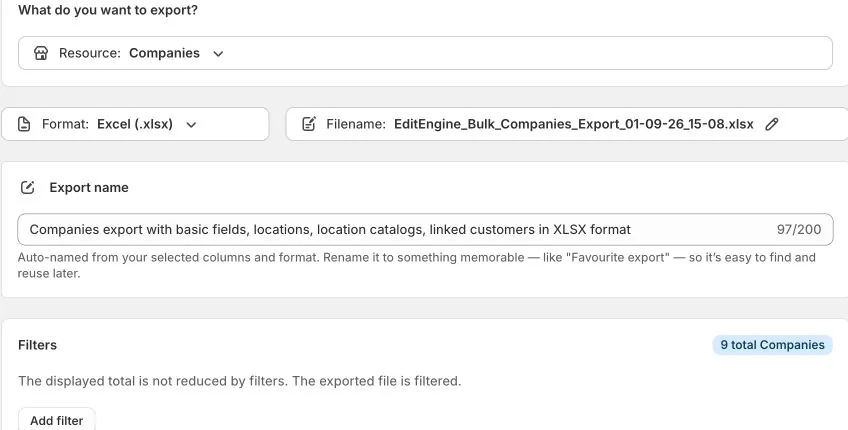
Use Add filter, choose Name, and set equals any of to an exact company name such as Northwind Wholesale. ID and External ID filters are also available. The displayed total is the store's Companies count, not the number remaining after your filters. Check the downloaded file before editing it.
In Select Columns, keep Base fields including ID, Name, Command, and Notes. Deselect Locations, Location Catalogs, Linked Customers, and the other optional groups for this company-note task.
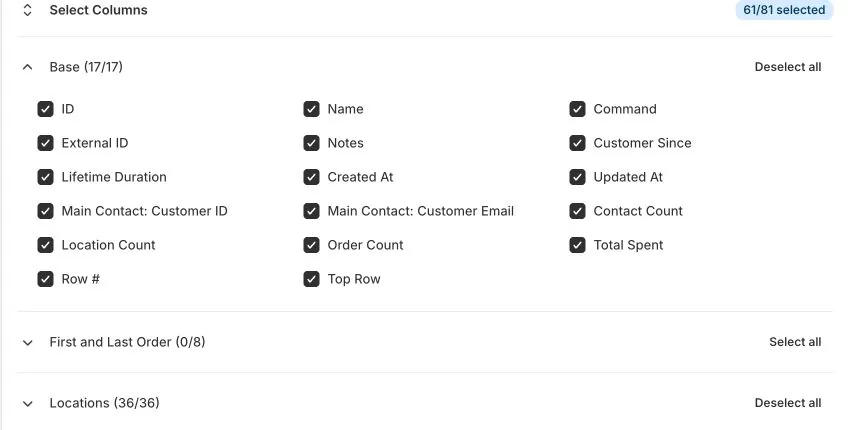
The image shows the broader default selection, not a notes-only import template. After reviewing your selection, create and download the export. Save it unchanged, then make a working copy.
Step 2 — Reduce the working file to three columns
Keep only ID, Command, and Notes. Remove Name too: it is writable and an old value could overwrite a later company-name change. Keep it only in the untouched reference copy.
| Column | What to put in it |
|---|---|
ID | The unchanged Shopify Company ID from this store's export, stored as text. |
Command | UPDATE, so a missing company fails instead of being created. |
Notes | The complete new, nonblank company note. |
Remove all Location:, Customer:, Main Contact, metafield, tax, and store-credit columns. Do not leave them in the file with blank cells. They belong to different tasks and some blanks have clearing behavior.
If your original export has repeated company rows, use its top row for the old note and reduce the working file to one row per Company ID. Do not submit conflicting notes for the same company.
Step 3 — Enter the complete new notes
ID,Command,Notes
1001,UPDATE,Send packing list to the warehouse team
1002,UPDATE,"Priority account. Call before dispatch, Monday to Friday."
These IDs and notes are illustrative. Replace them with your own exported IDs and approved account notes. The second note is quoted because it contains a comma. Save IDs as text so spreadsheet software does not round them or use scientific notation.
Keep the Excel worksheet named Companies. For CSV, use Companies.csv and confirm that Advanced Import detects Companies; these three headers alone are not a reliable way to distinguish every resource.
Blank Notes does not clear the note in EditEngine. Remove rows with no intended change. To clear an existing note, use Shopify Admin instead. To append information, include both the old text and your addition in the new cell.
Step 4 — Review a one-company Advanced Import
Only continue on an eligible internal test shop. Save a test copy containing the header and one company row. Open EditEngine → Import → Advanced import and upload that copy.
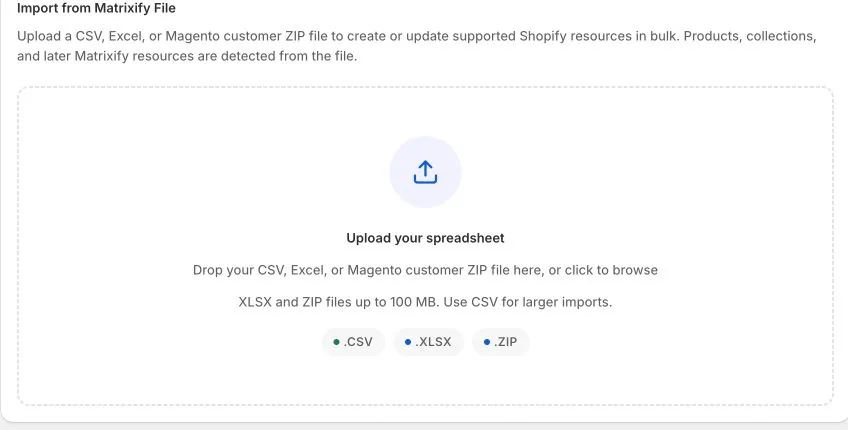
After analysis, check that the resource is Companies, that the intended sheet is selected, and that only ID, Command, and Notes are included. Review any access or compatibility errors. Granting Shopify permissions does not bypass the internal-test-only restriction.
If Notes is marked unknown: some app versions can show a misleading skipped-column warning for this exact header, although the Companies importer reads it. Keep Notes unchanged; do not remap it to a product field or remove it. Confirm that Companies is the detected resource and resolve other errors. If the warning persists, ask support to confirm your app version before running the one-company test. This exception does not apply to arbitrary unknown columns.
Review the detected headers and any sample rows shown. A sample is not a full-file or before-and-after validation. Inspect the ID and complete note in your spreadsheet. Confirm UPDATE is written in the row, not just assumed from the default command.
Step 5 — Test and verify the actual company
When the file and access checks are correct, run that one-company import. Download the result and review Import Status and Import Comment.
Open the company in Shopify Admin → Customers → Companies. Confirm that:
- The company note exactly matches your new text.
- The Company ID, company name, and External ID are unchanged.
- Locations, linked customers, roles, and catalogs remain as they were.
Create a fresh focused Companies export and compare its Notes value by ID. Keep that export and the import result with your original file. Only then process the remaining intended companies.
If the ID is stale or belongs to another store, correct the identity from a fresh same-store export. Do not change the command to MERGE to work around a missing-company error.
Recovery and Matrixify differences
To restore a previous nonblank note, prepare another three-column UPDATE file using that old note and test it first. If the original note was blank, clear it in Shopify Admin; a blank import cannot restore that state. Do not reimport all the original company columns as a rollback.
The column names follow the Matrixify Companies reference, and its B2B export tutorial also starts from a selected Companies export. This page documents EditEngine's notes-only operation and restricted availability, not a promise of every Matrixify command's behavior. In particular, do not transfer Matrixify's blank Main Contact clearing rule to EditEngine; omit those columns entirely for this task.
Related tutorials
- Companies export and import — the wider company, location, and contact workflow.
- Import and export resource availability — public and restricted resources.
- Add customer tags without replacing existing tags — tag customer records separately from company notes.