
Getting started
Bulk Edit with the AI Assistant
Published by Profitonium Apps · Last updated
EditEngine has an AI assistant built in. Tell it what you want in plain words, like "Lower prices by 10% in the Summer collection", and it sets up the bulk edit, import, export or undo for you. You see a preview first, and nothing in your store changes until you confirm.
Where to find it
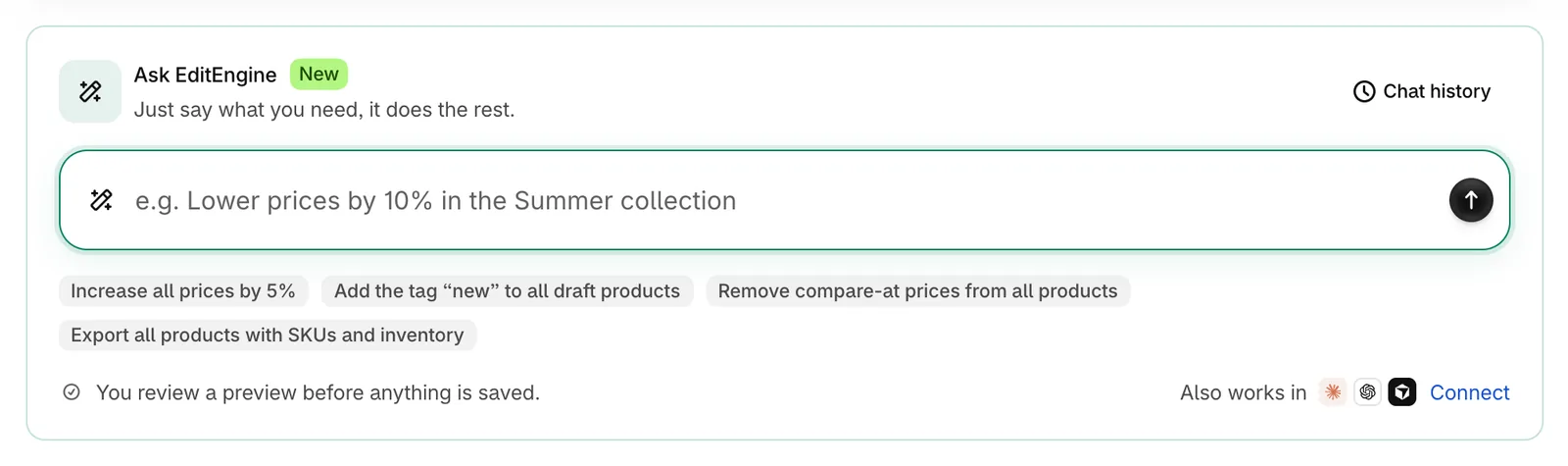
Open EditEngine. The Ask EditEngine card is at the top of the Home page. Every store has had it since October 2026, on every plan.
Type your request in the bar and press Enter or the arrow button. Clicking a suggestion under the bar fills the bar in without sending it. Chat history opens your earlier conversations.
What you can ask for
- Bulk edit products and variants, such as prices, tags or SEO titles.
- Schedule an edit to run later, on plans that include scheduling.
- Import a CSV or Excel file that you attach in the chat.
- Export products or other store data to a file you can download.
- Undo an earlier bulk edit.
- Check on a job, rename it or cancel it.
Nothing changes until you confirm
Before anything runs, the assistant shows a card that says what will happen. For a bulk edit, the card lists the products with their current and new values. The button on the card runs it: Apply to N products for a bulk edit, or Start import, Create export or Undo edit. Cancel drops it, and nothing in your store changes.
Once a job starts, the card shows its progress. View results opens the same results page you get from History.
Discounts: you choose how prices change
When you ask for a percentage discount, for example "20% off the Summer collection", the assistant first asks how the discount should change your prices. You get three choices:
- Keep selling price; show 20% savings. Customers still pay the current price. The crossed-out (compare-at) price is set so the product shows 20% off.
- Reduce selling price by 20%. The price drops by 20%, and the old price is shown crossed out.
- Take 20% off the crossed-out price. The crossed-out price stays, and customers pay 20% less than it. Products without a crossed-out price stay unchanged.
A price increase is not a discount, so a request like "Increase all prices by 5%" skips this question and goes straight to the preview.
Importing a file
Attach a CSV or Excel file in the chat and ask the assistant to import it. It checks the file and shows what the import will do: what it imports into, how it finds existing records, which columns it will write, and whether it is a dry run (checks the file and changes nothing) or a live import.
If no sheet in the file can be imported as it is, the assistant tells you why and offers no button to start the import. Fix the file, then attach it again.
Good to know
- Jobs the assistant starts follow your plan's limits, the same as jobs you set up yourself.
- Each store has a daily assistant limit. If you reach it, the assistant tells you when you can send messages again.
- To use EditEngine from Claude, ChatGPT or Cursor, click Connect at the bottom of the card.